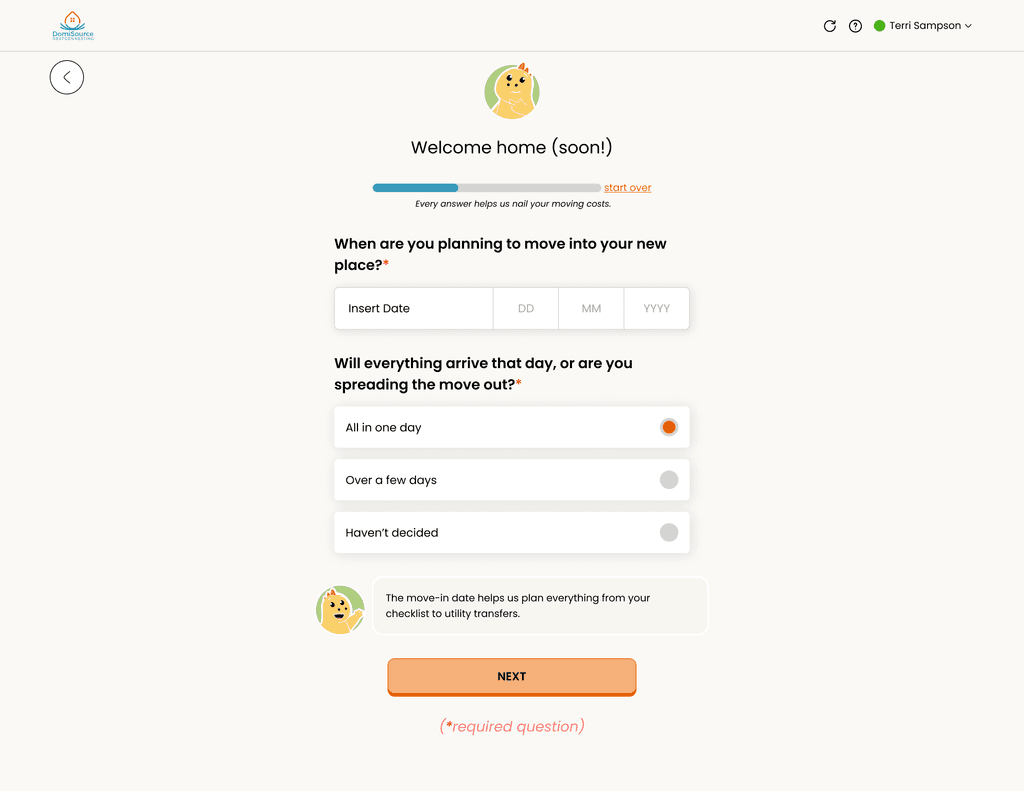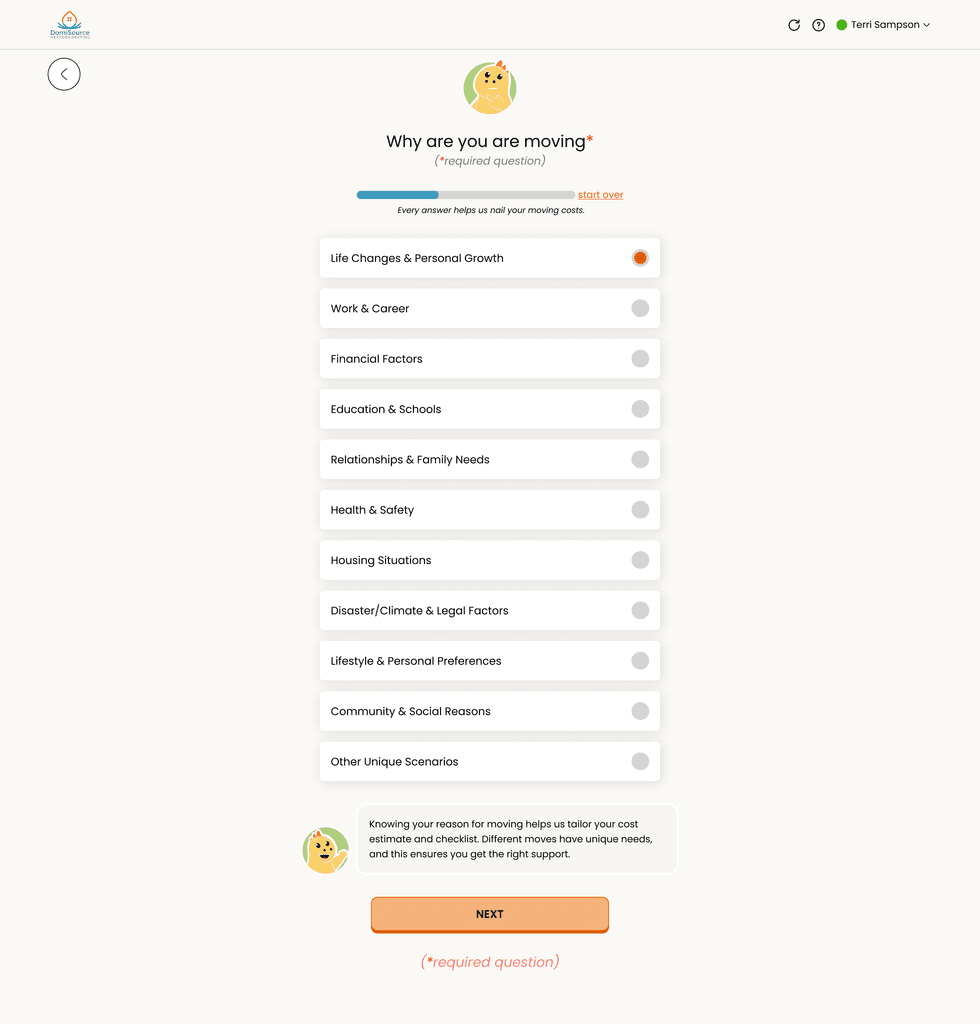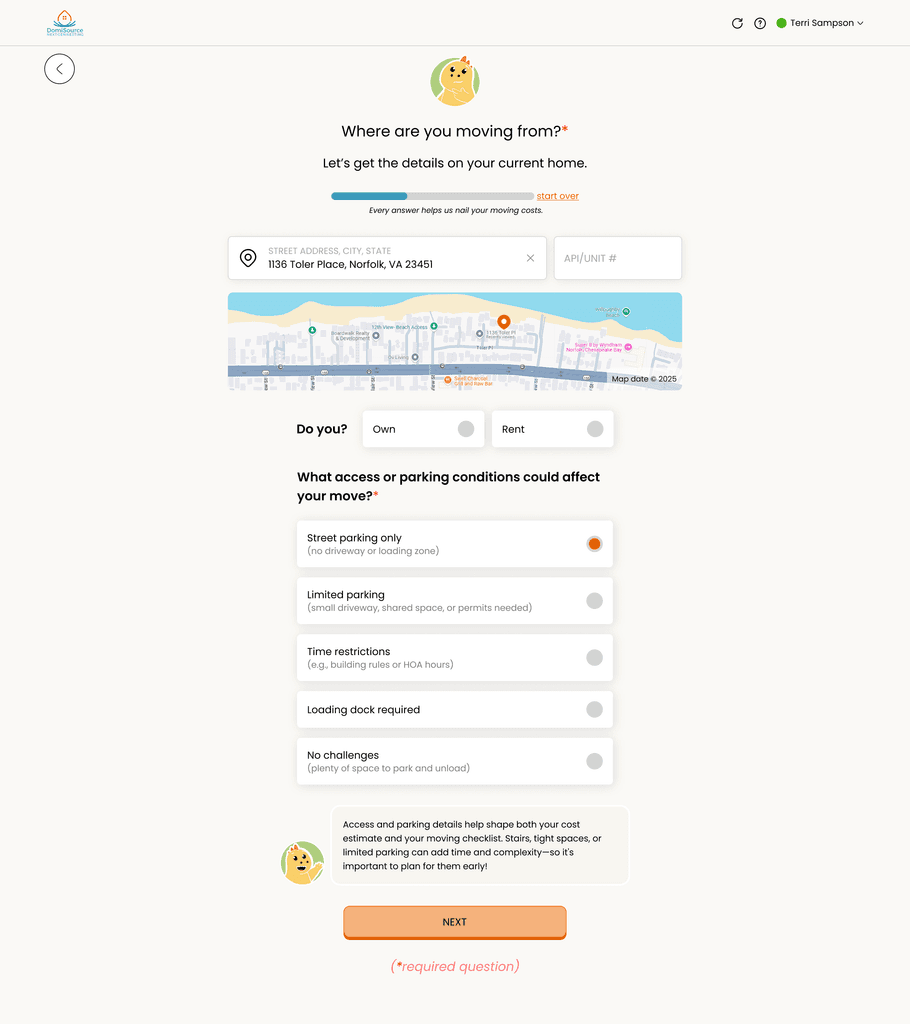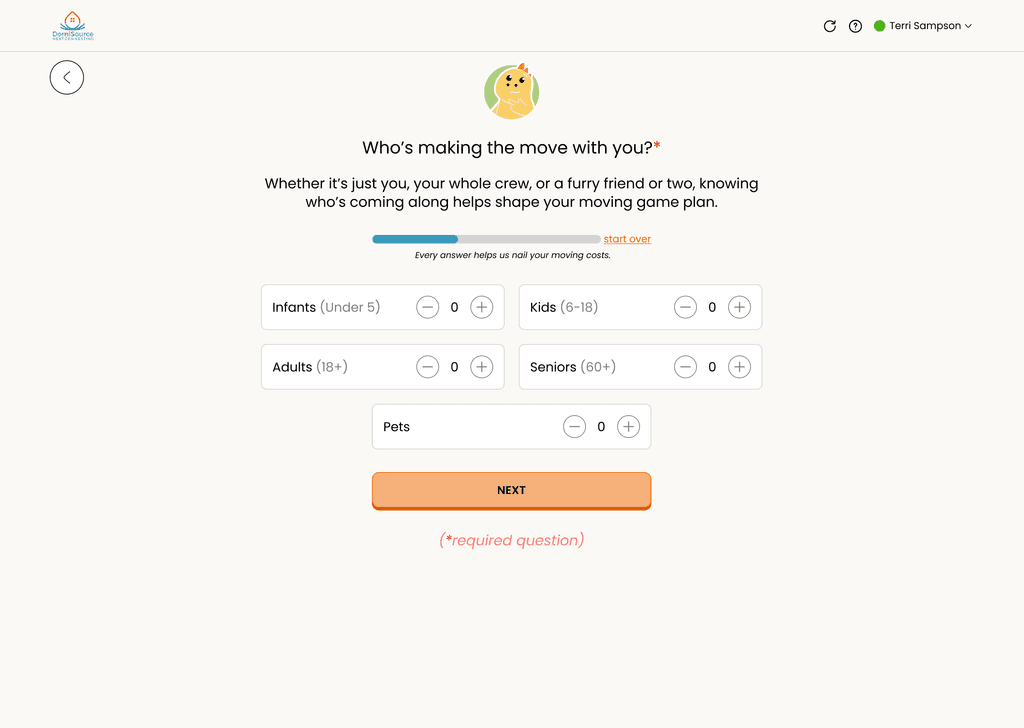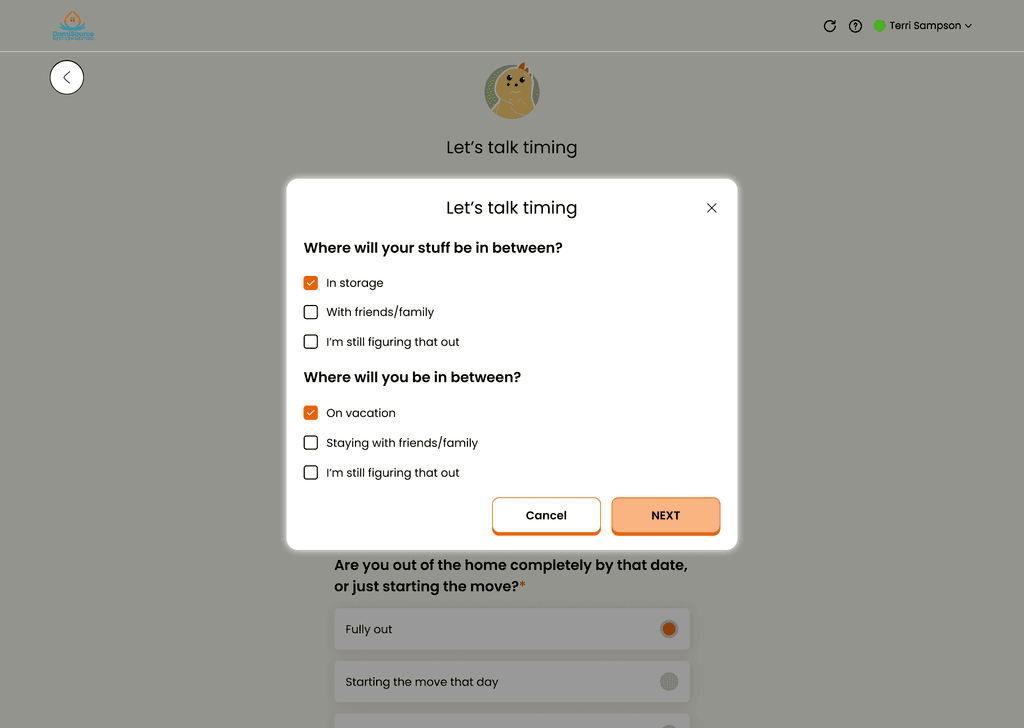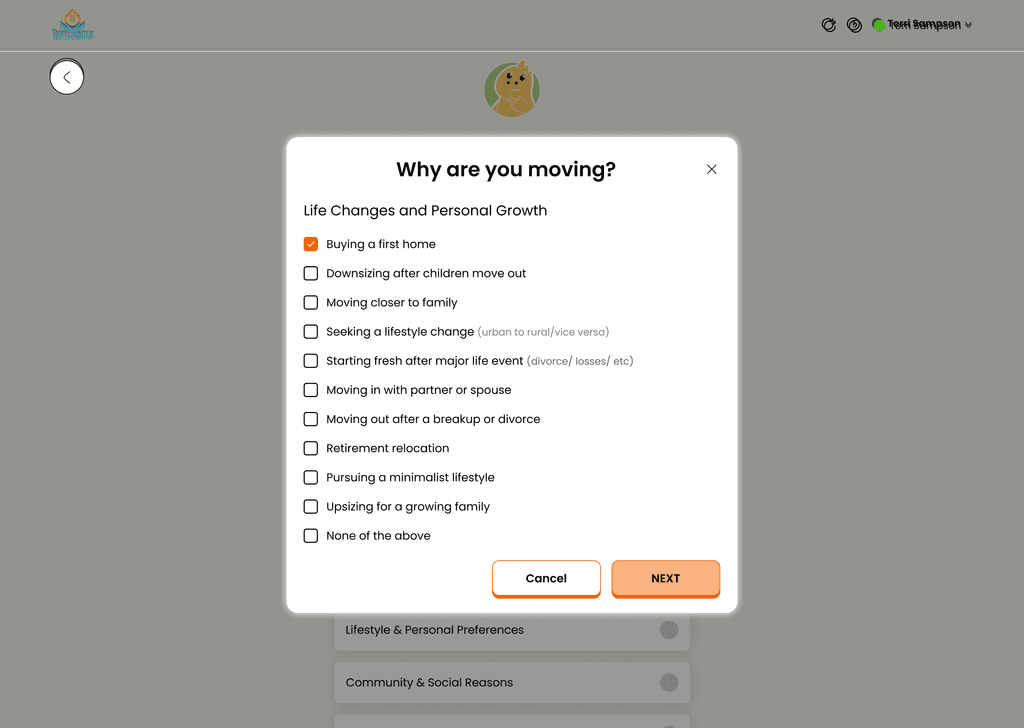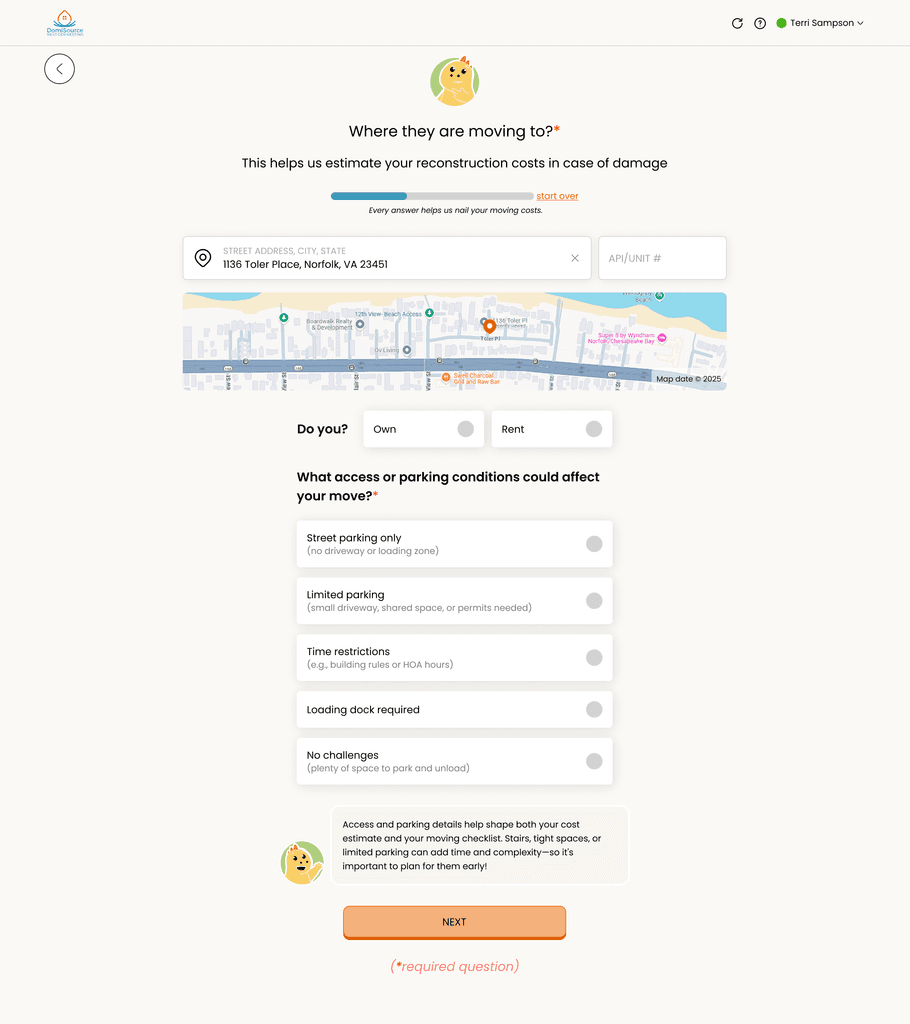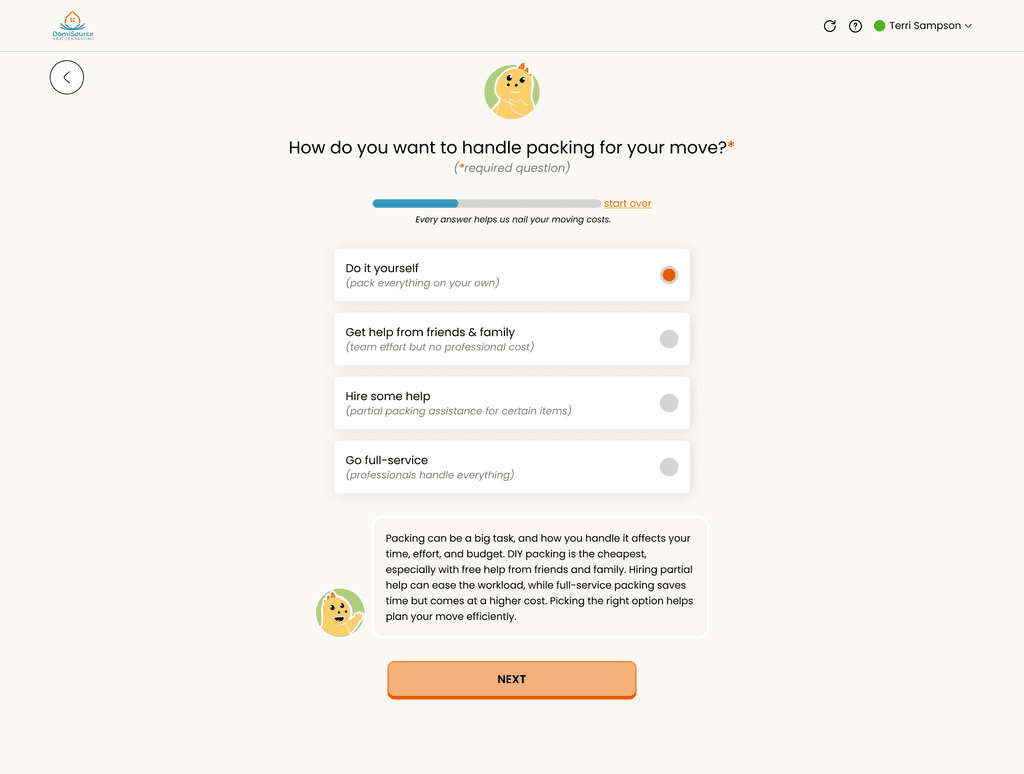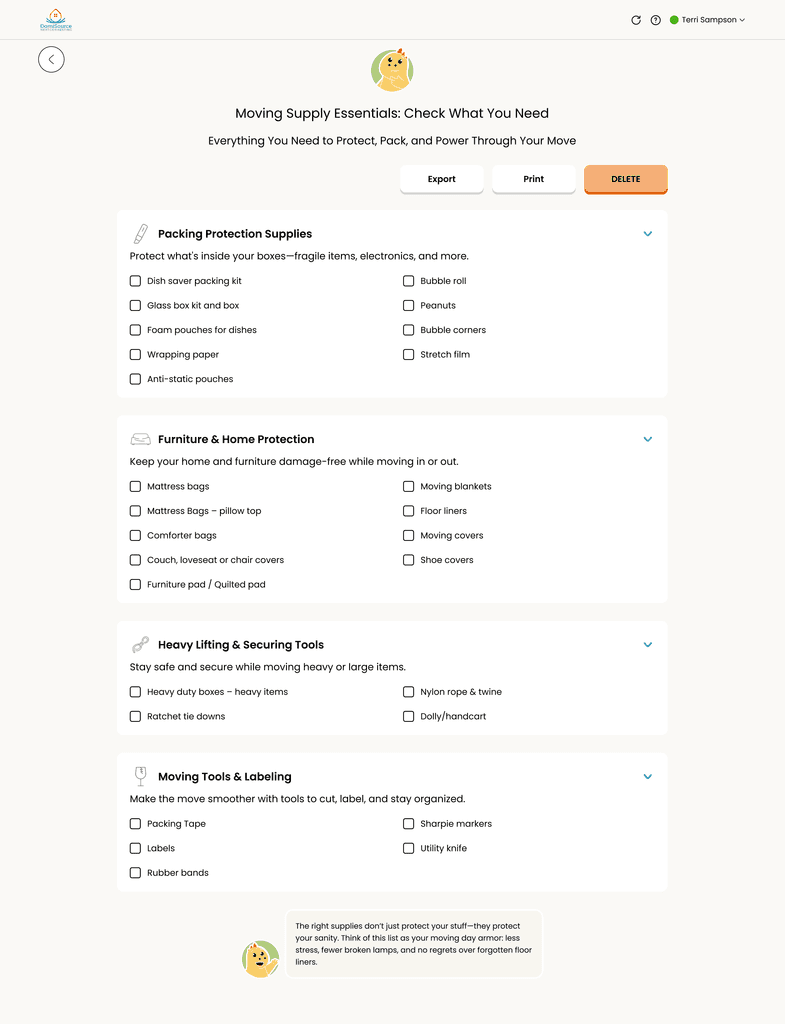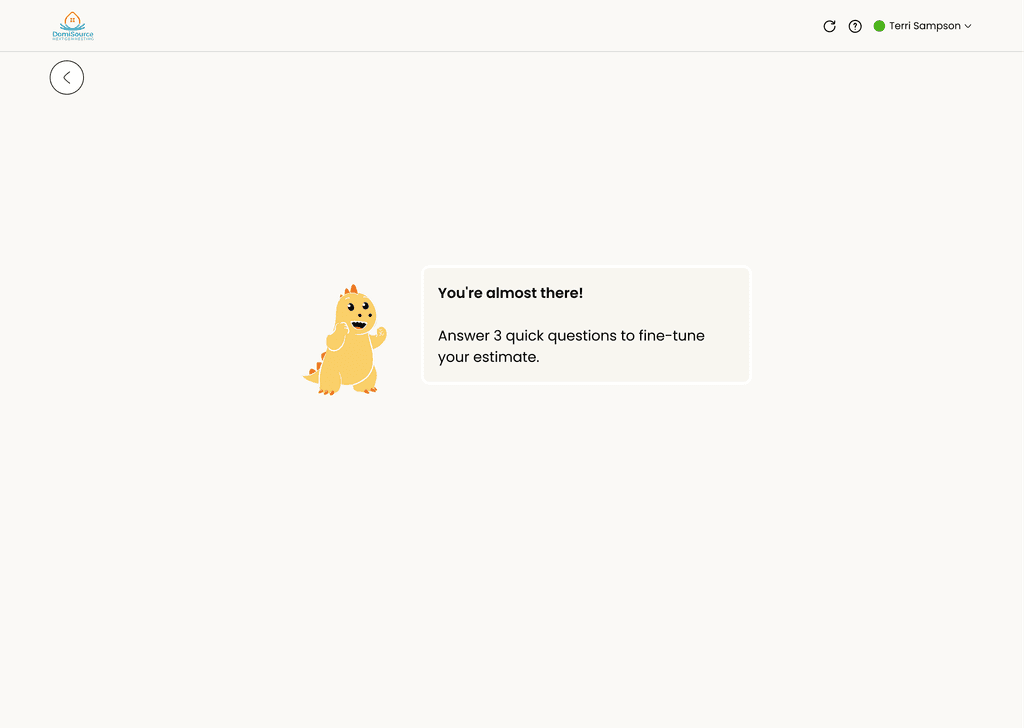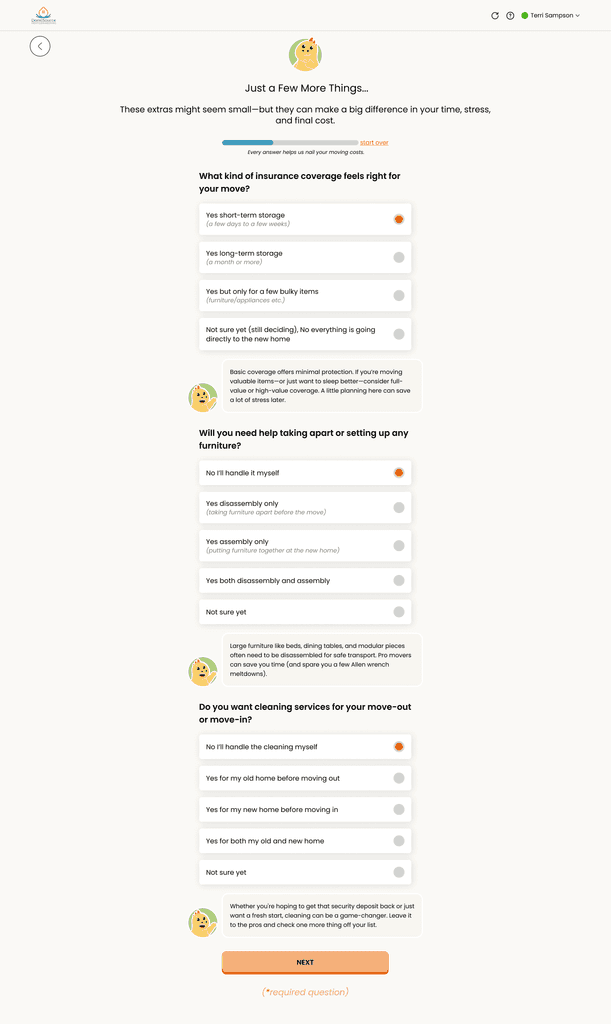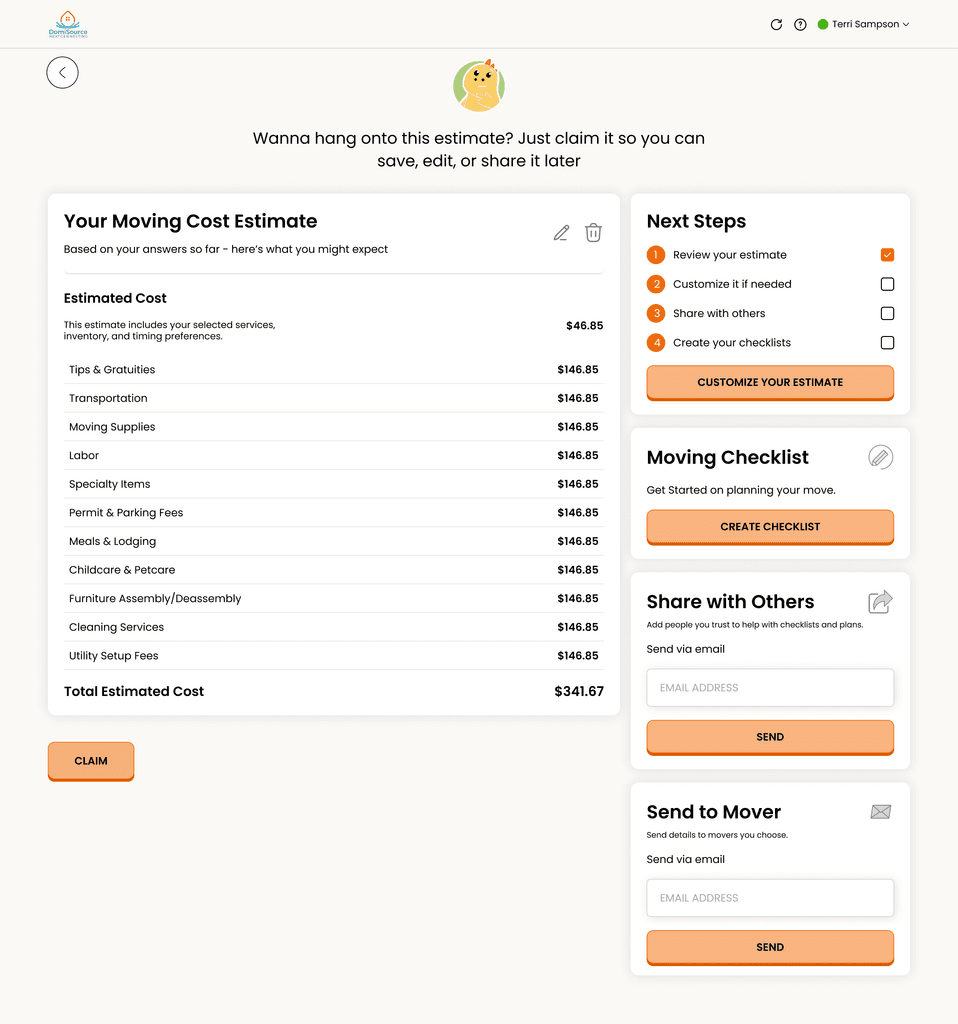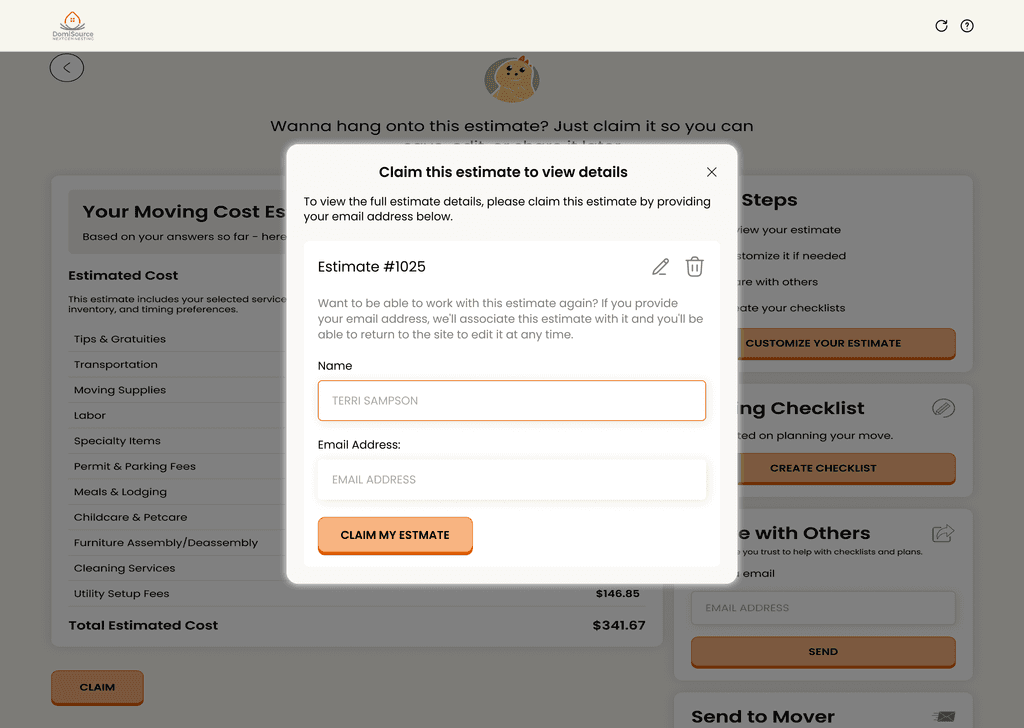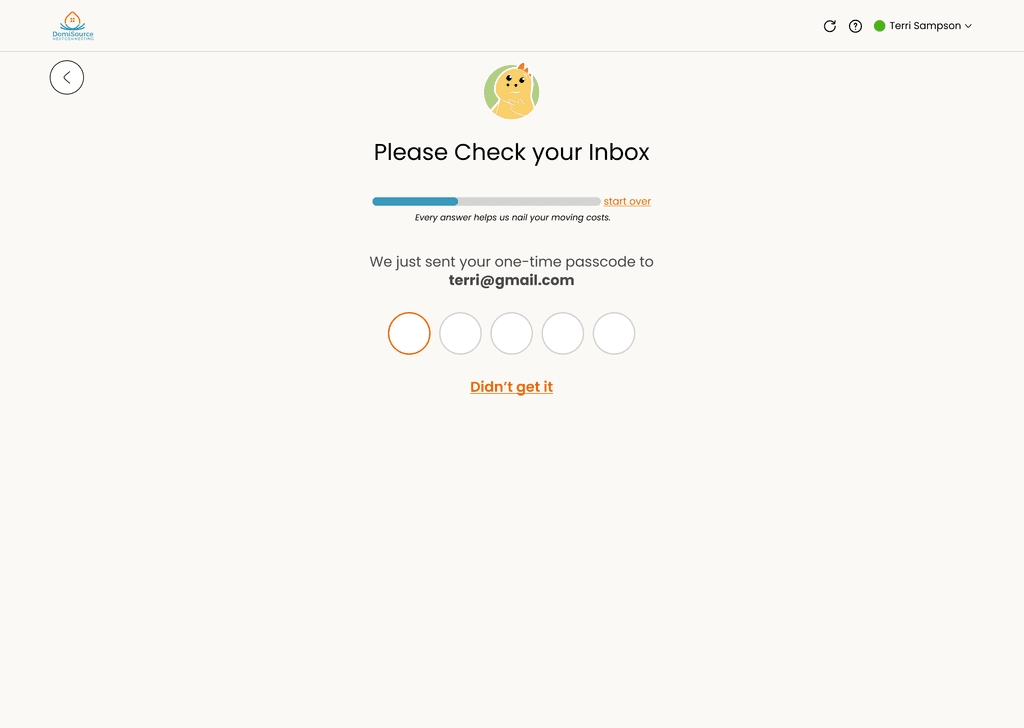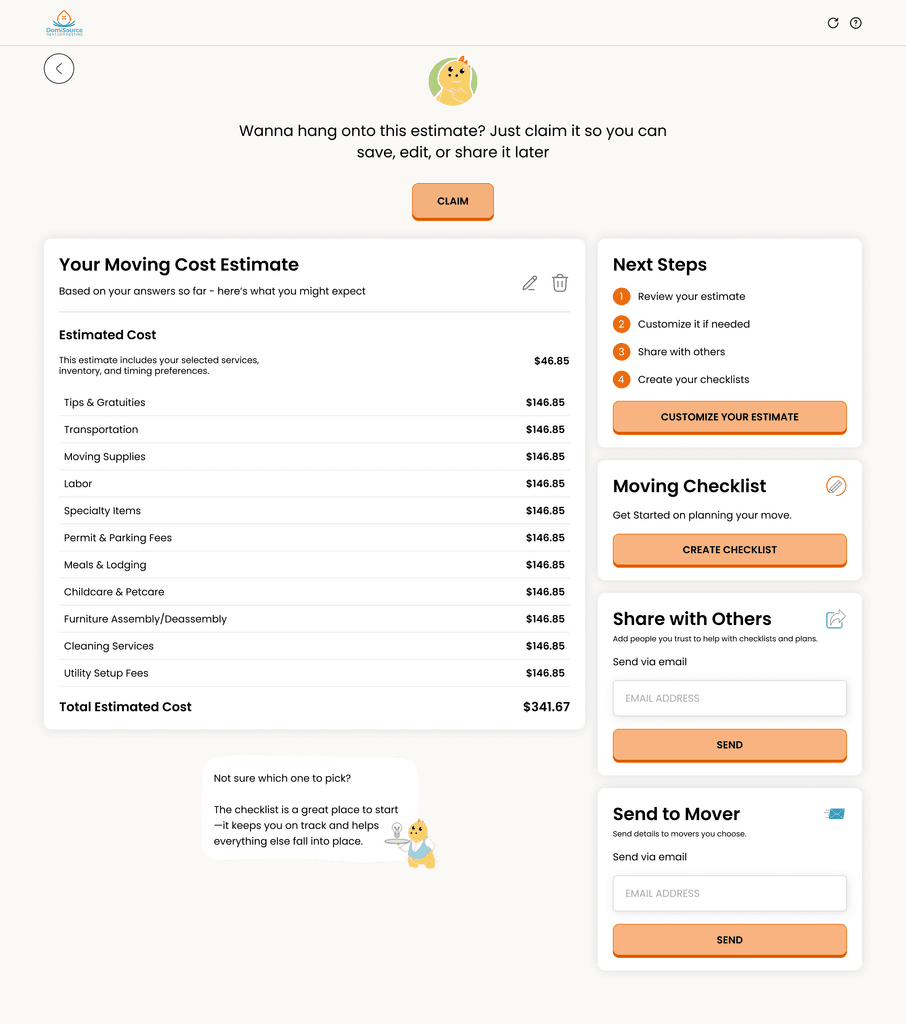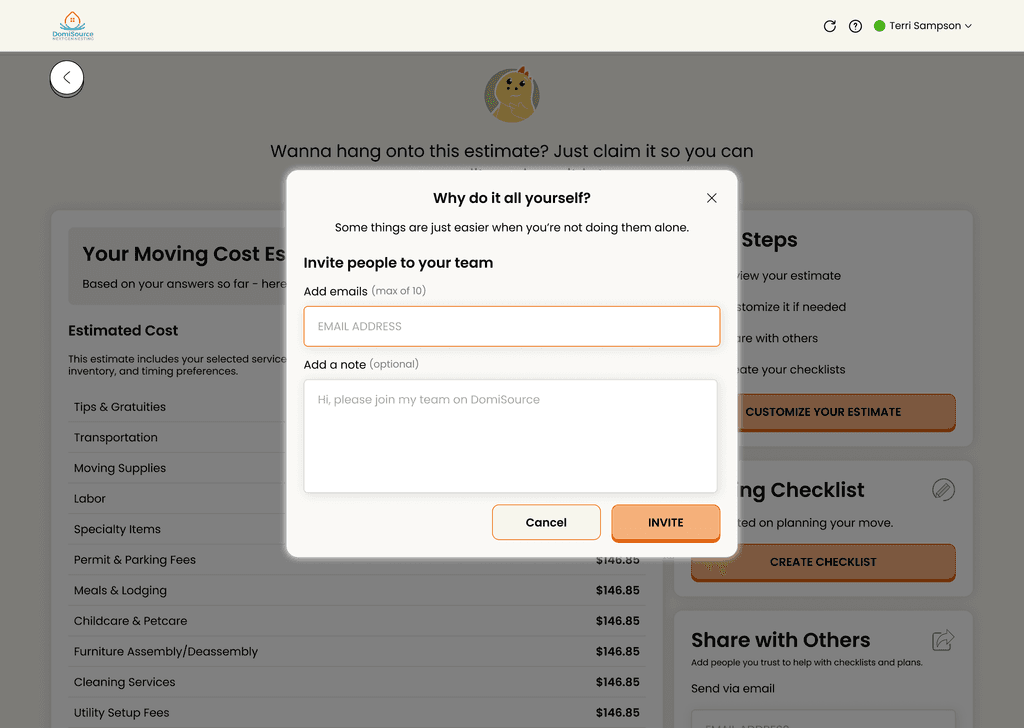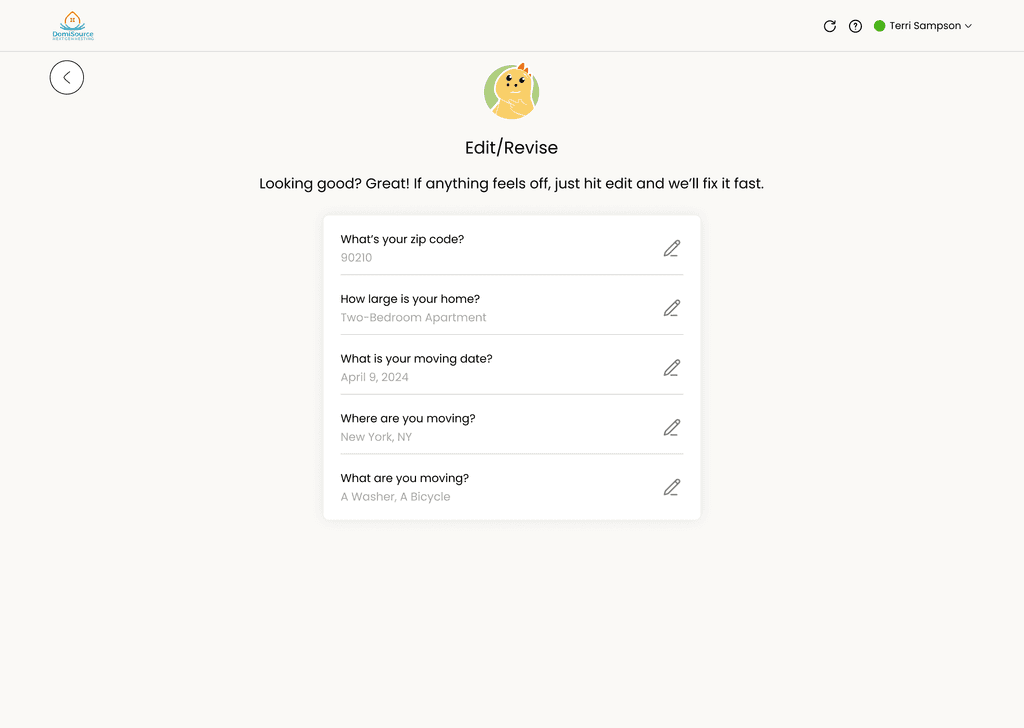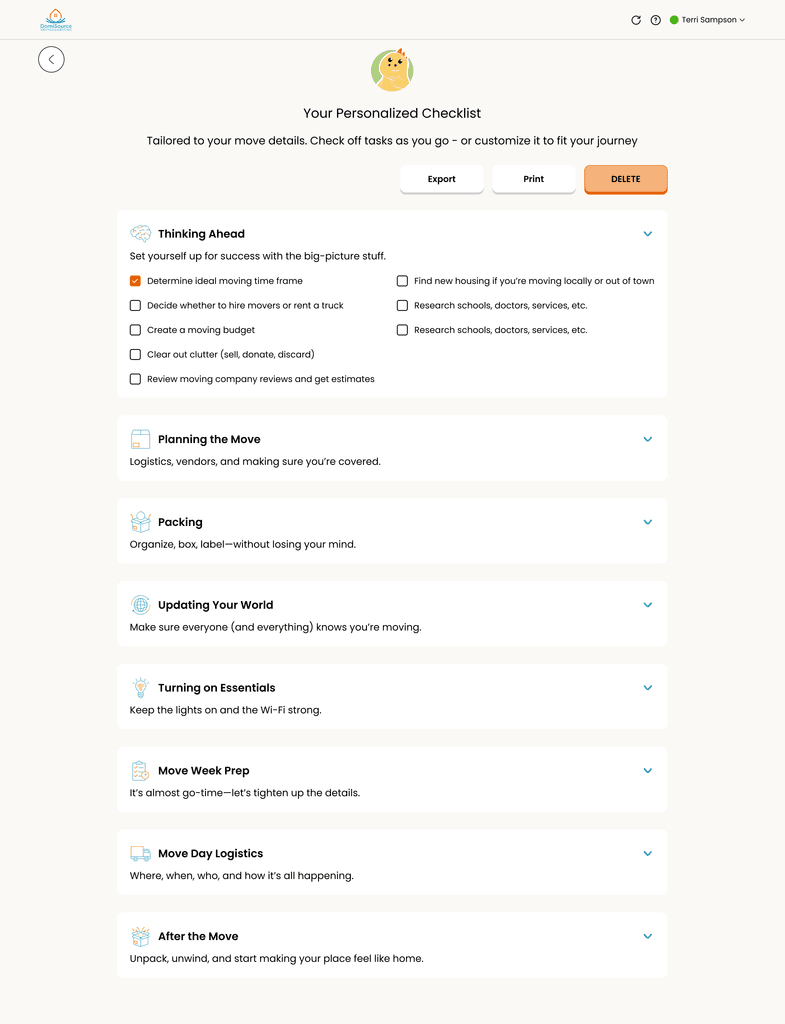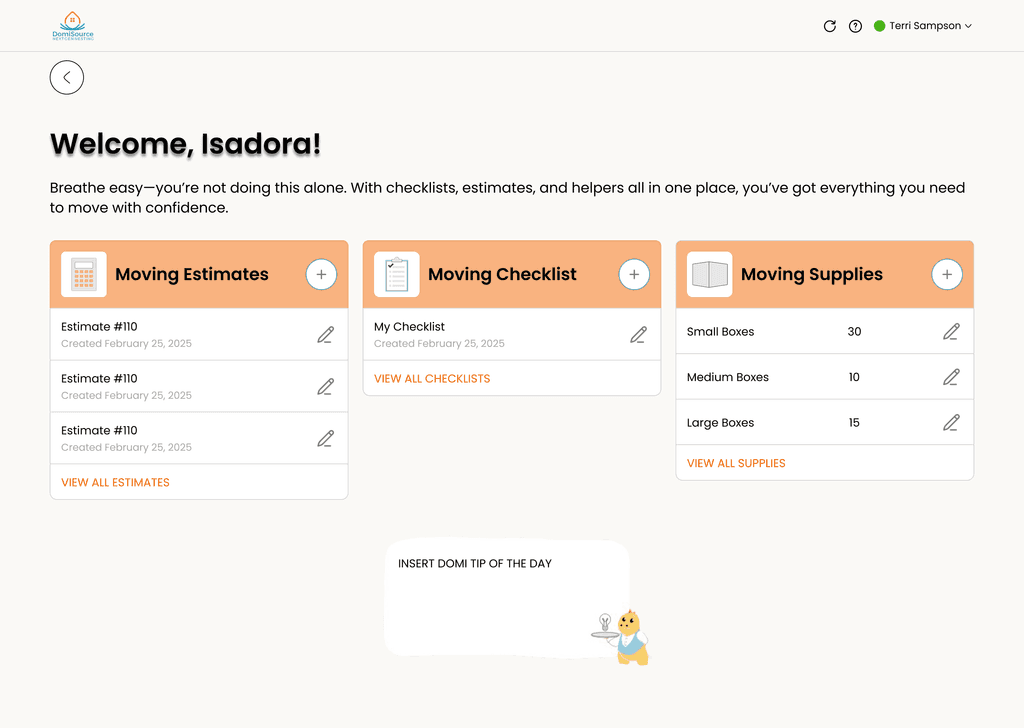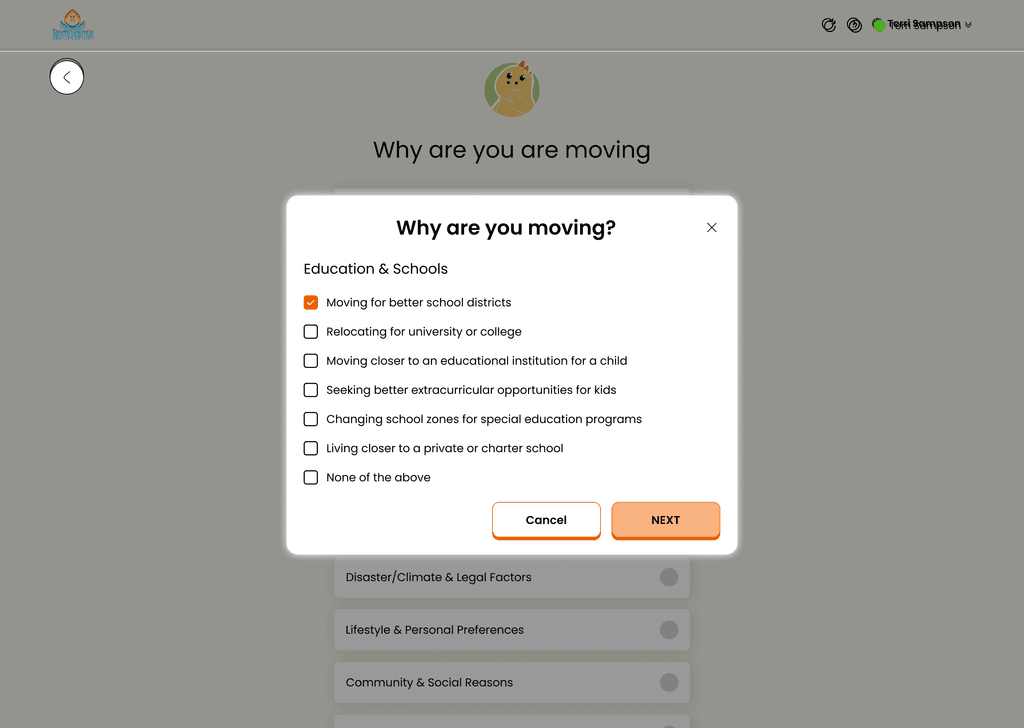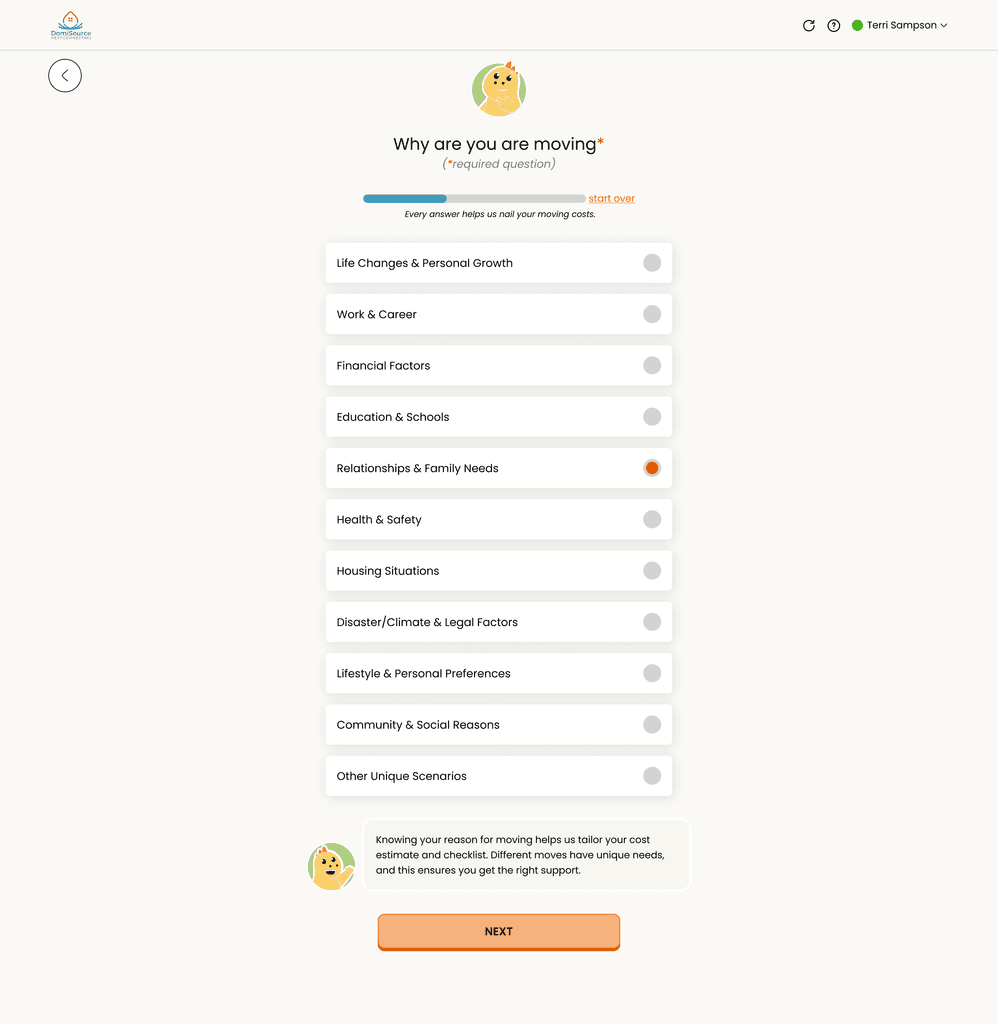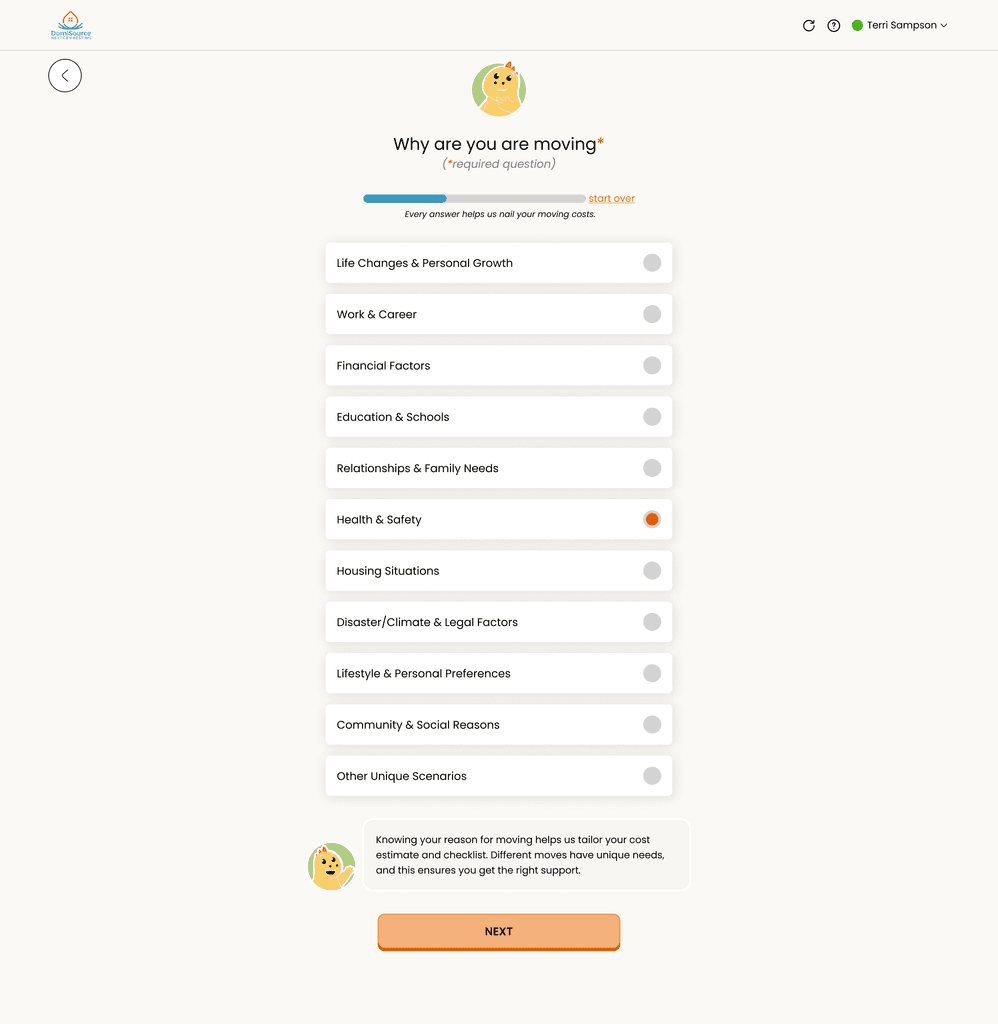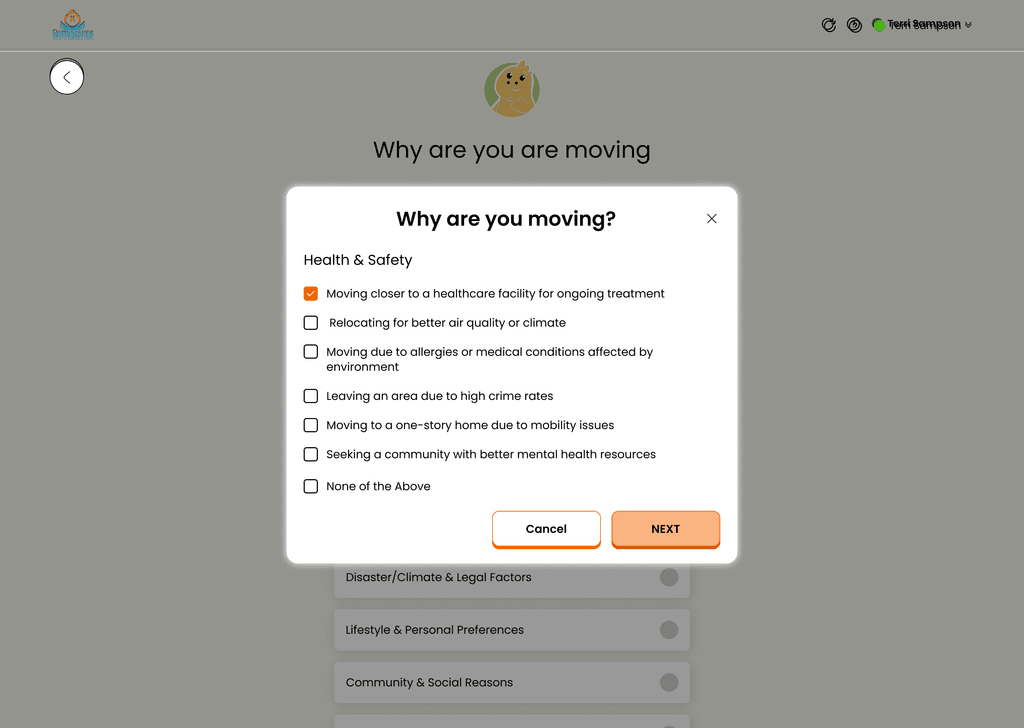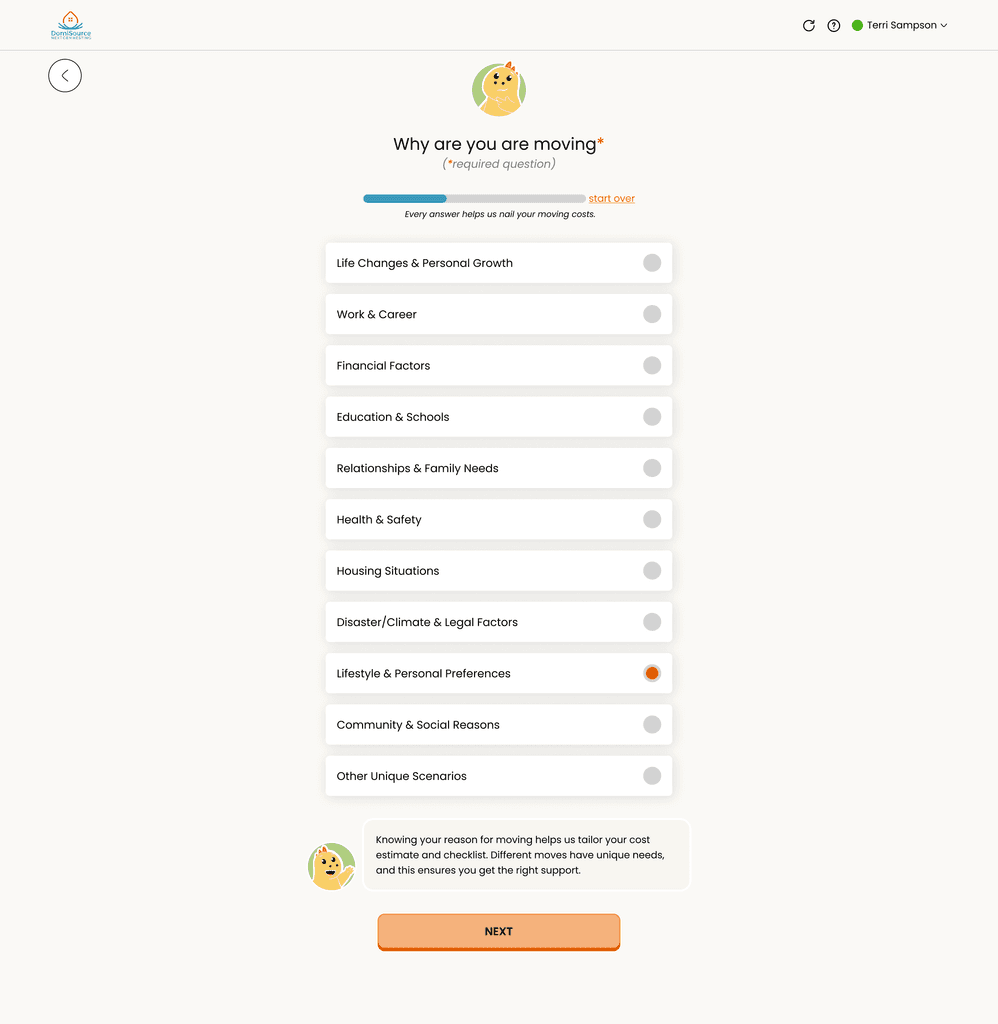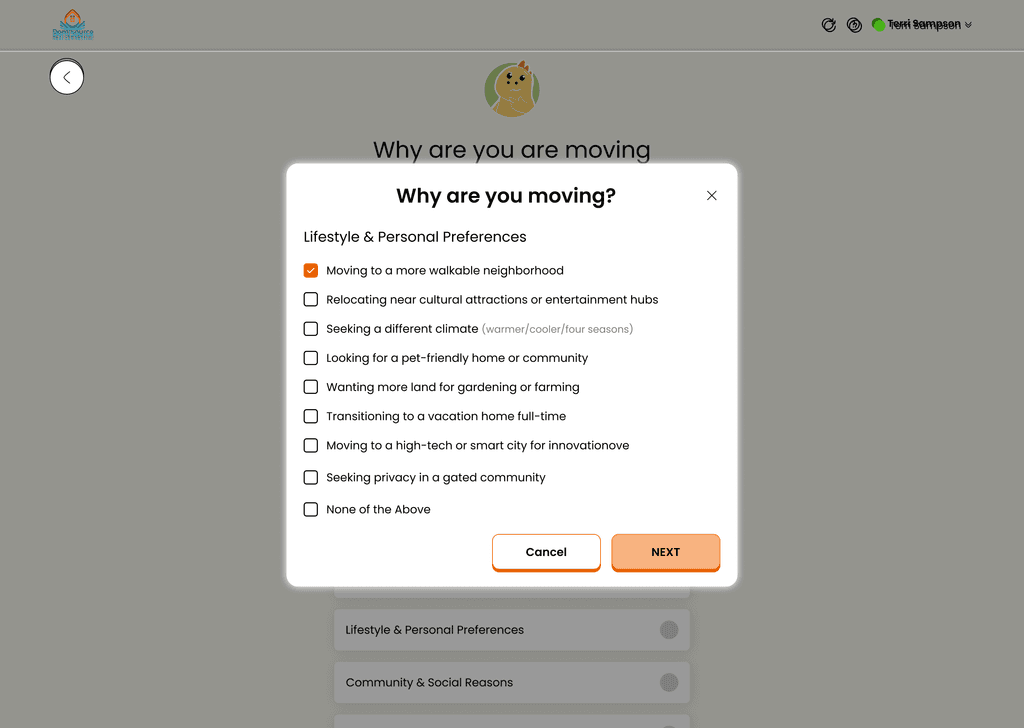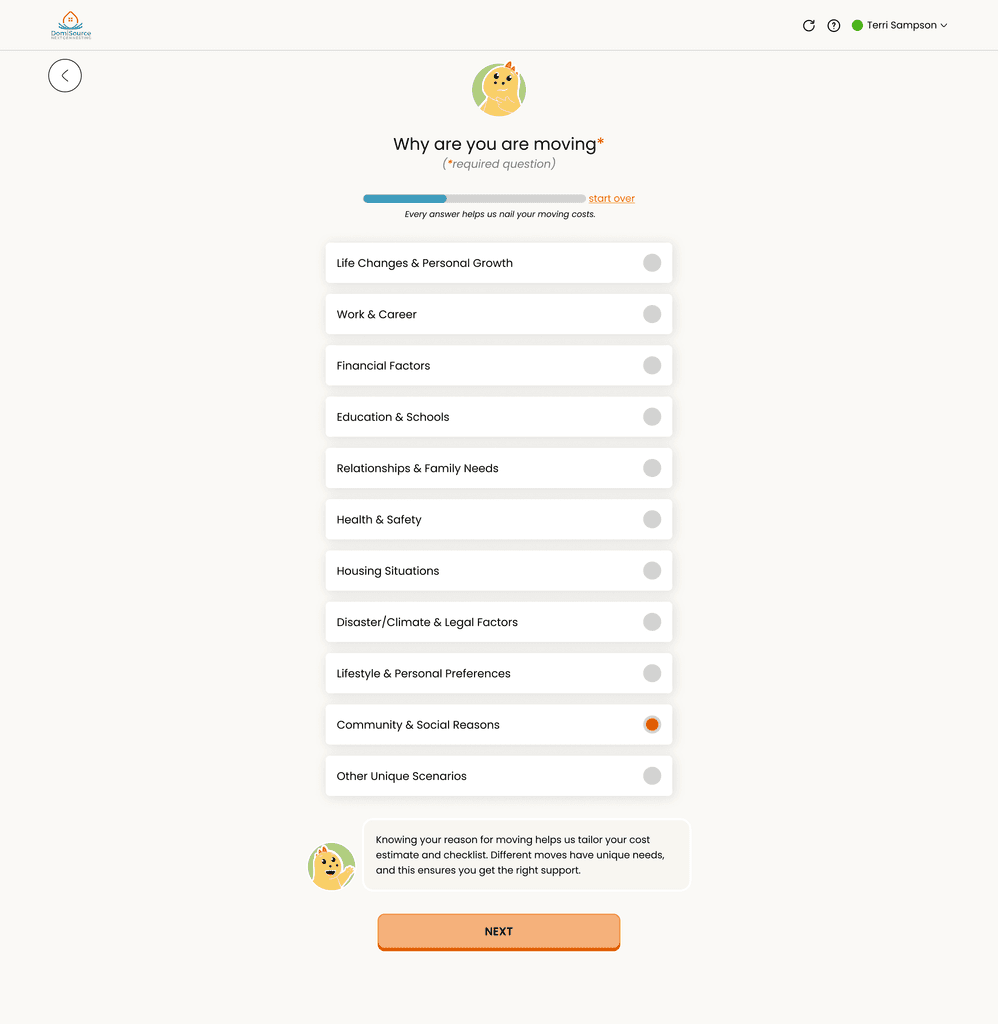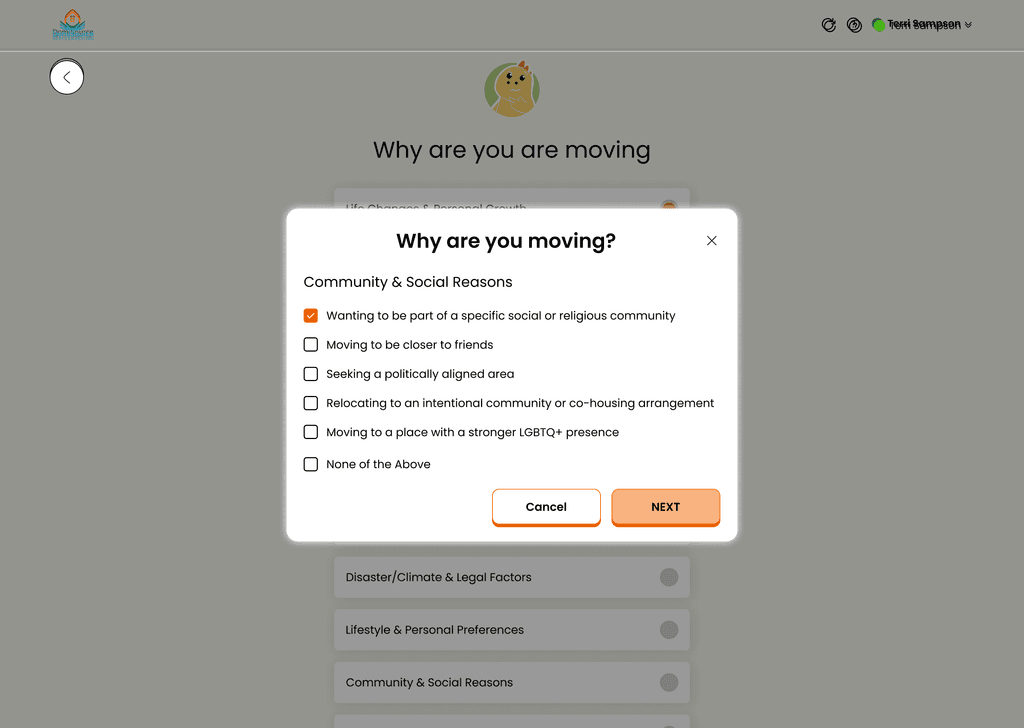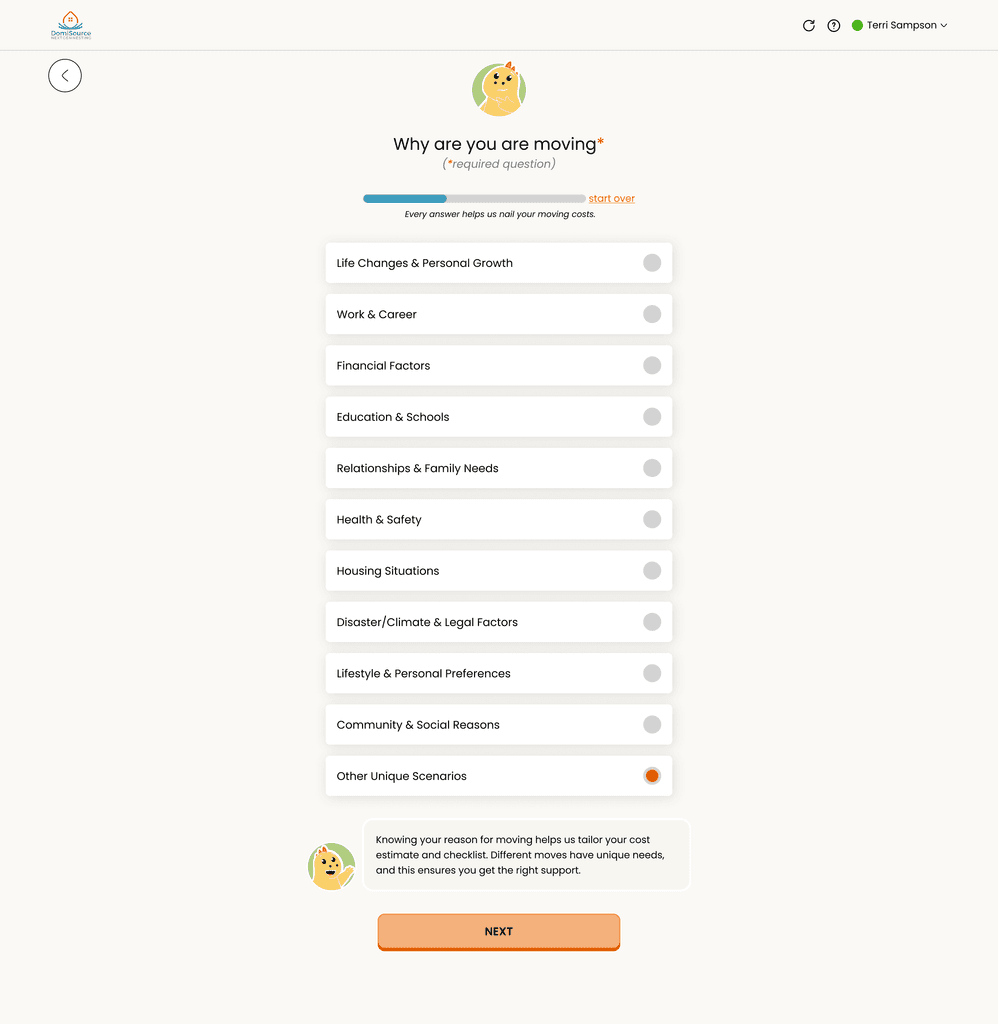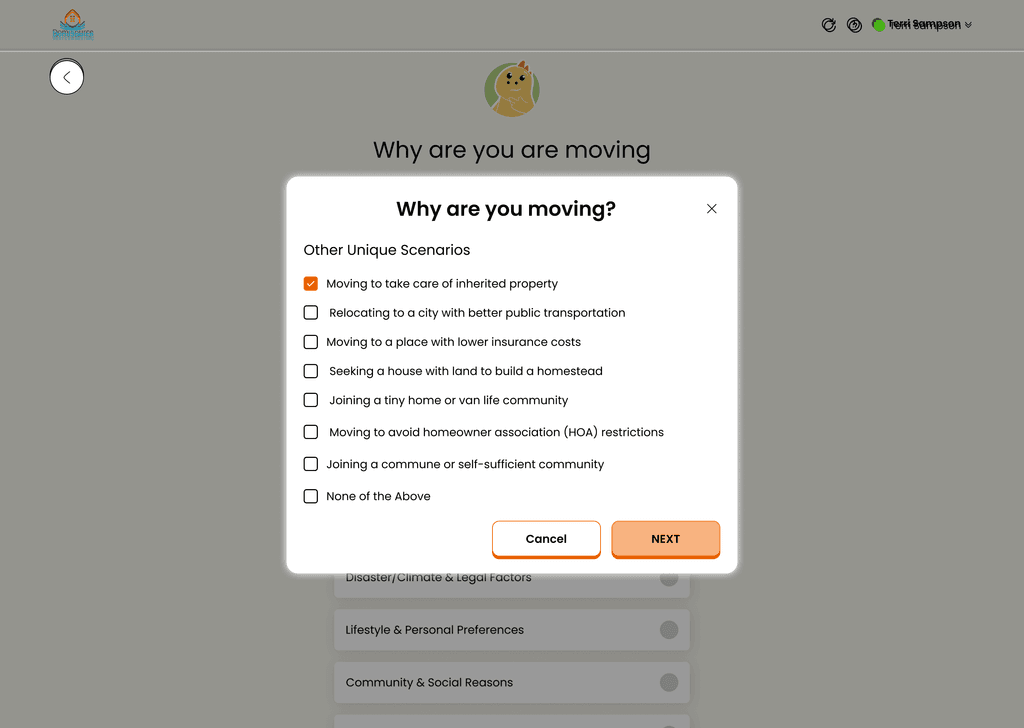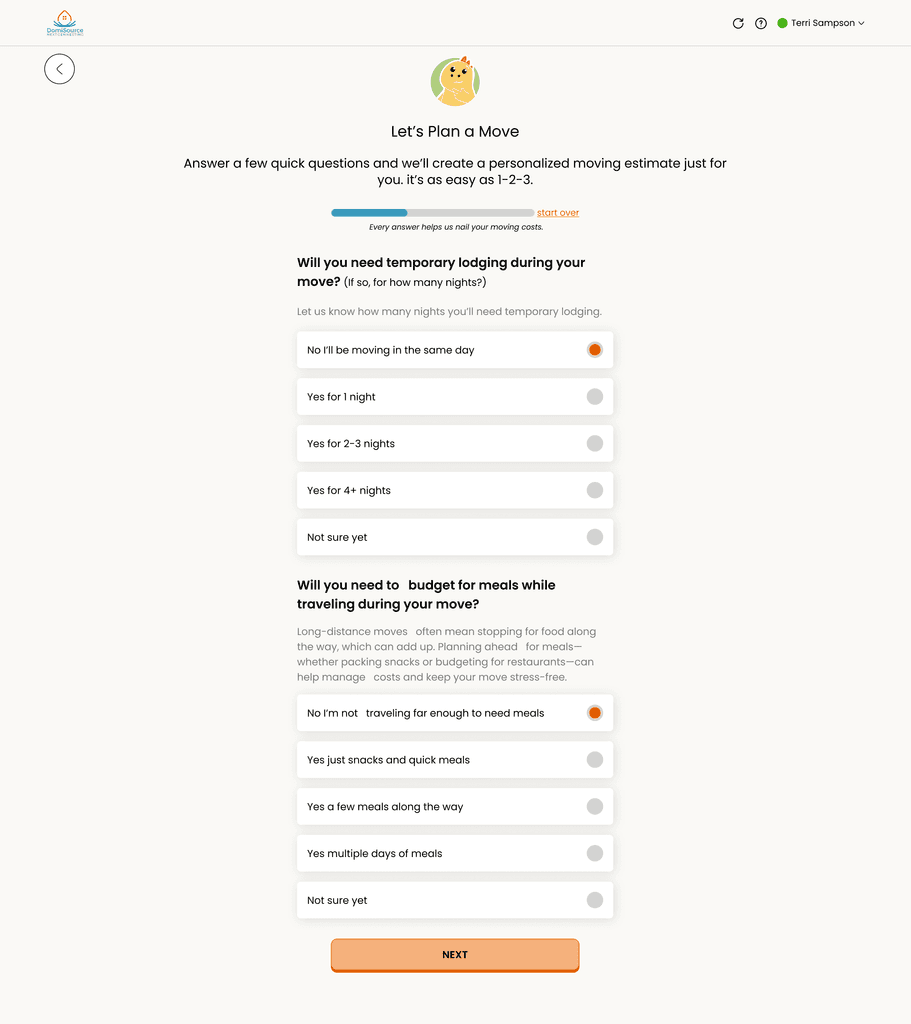
Headers 28px
Header subline 20px
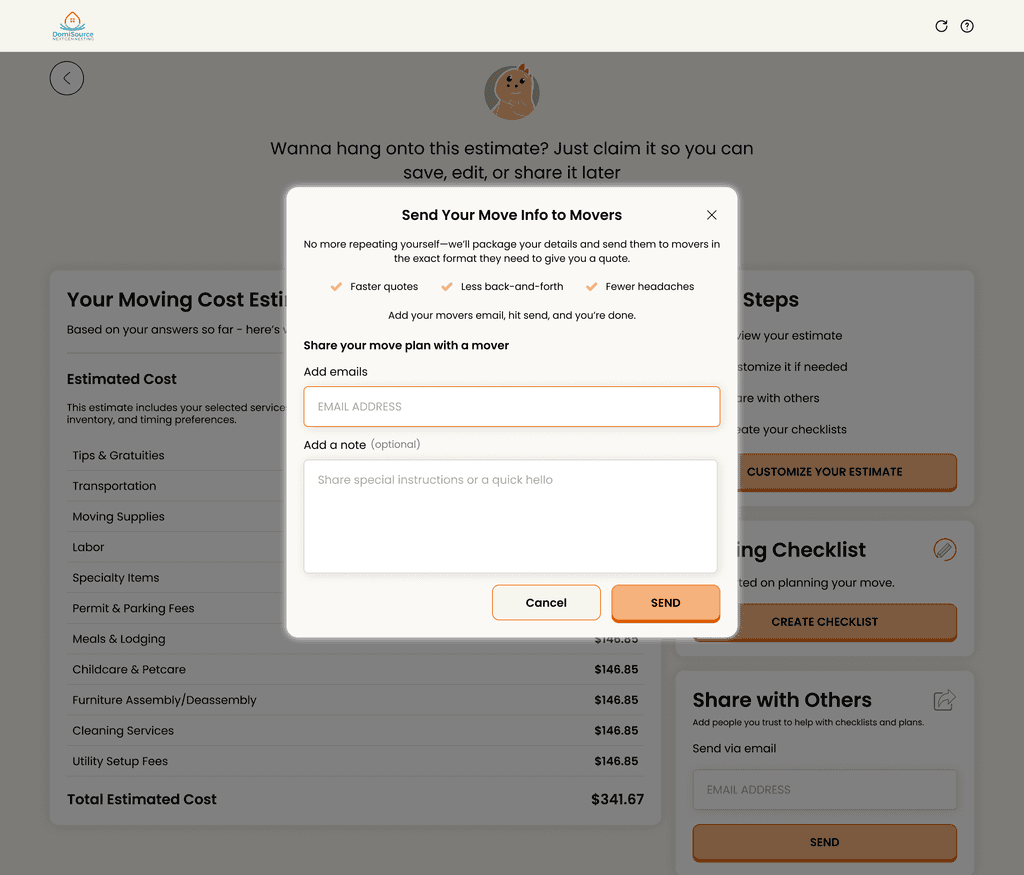
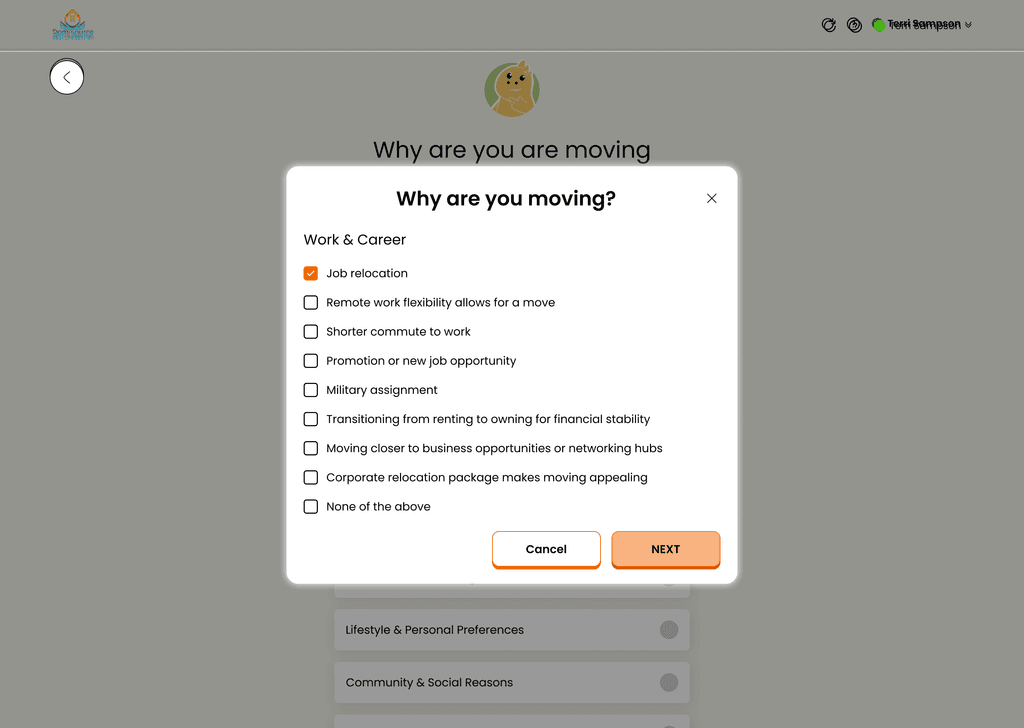
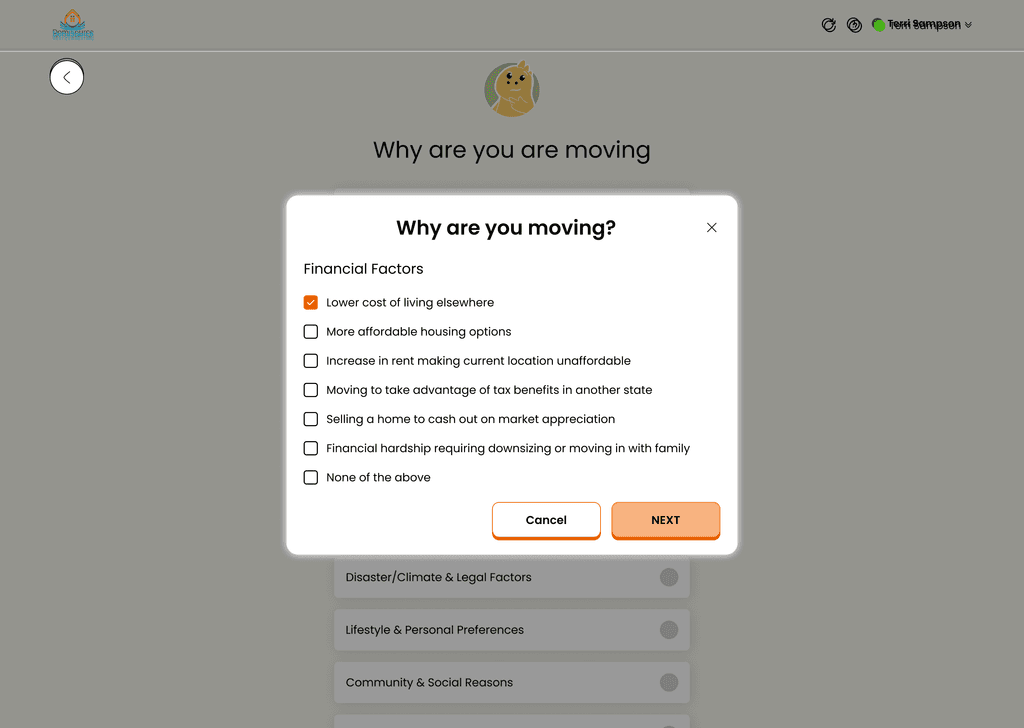
Background: White
Corners: Rounded
Shadow: Subtle drop shadow
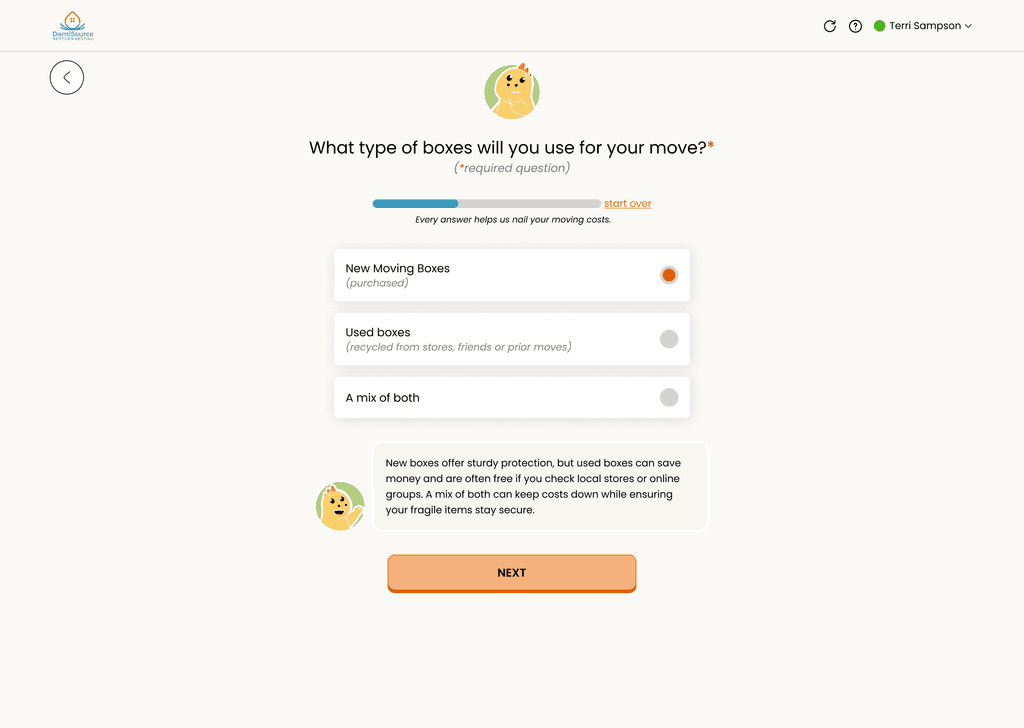
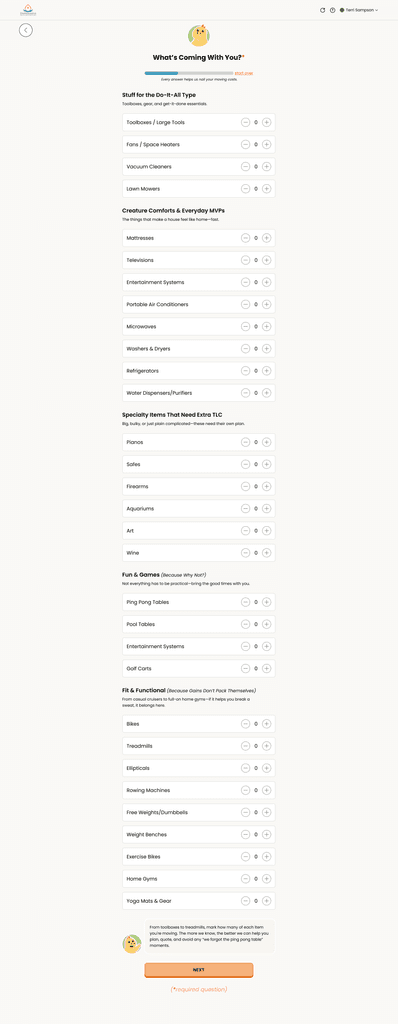
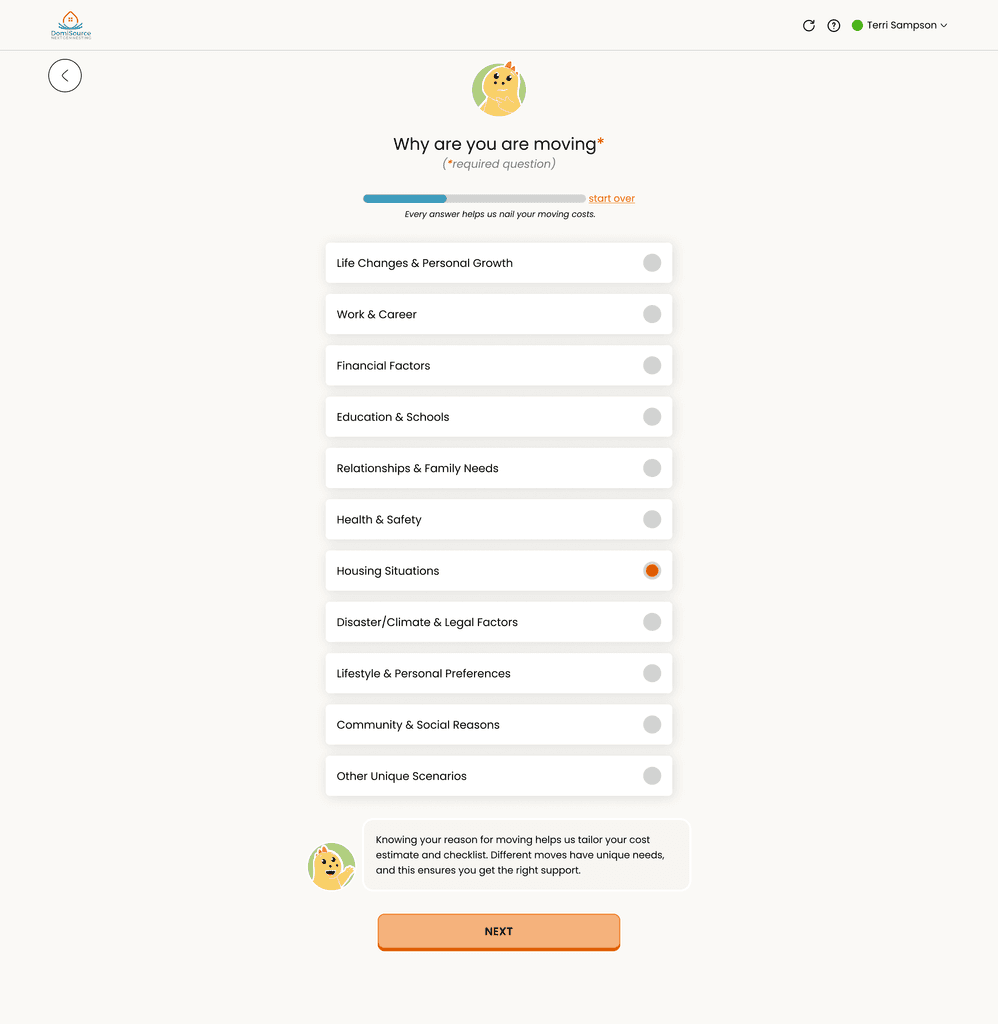
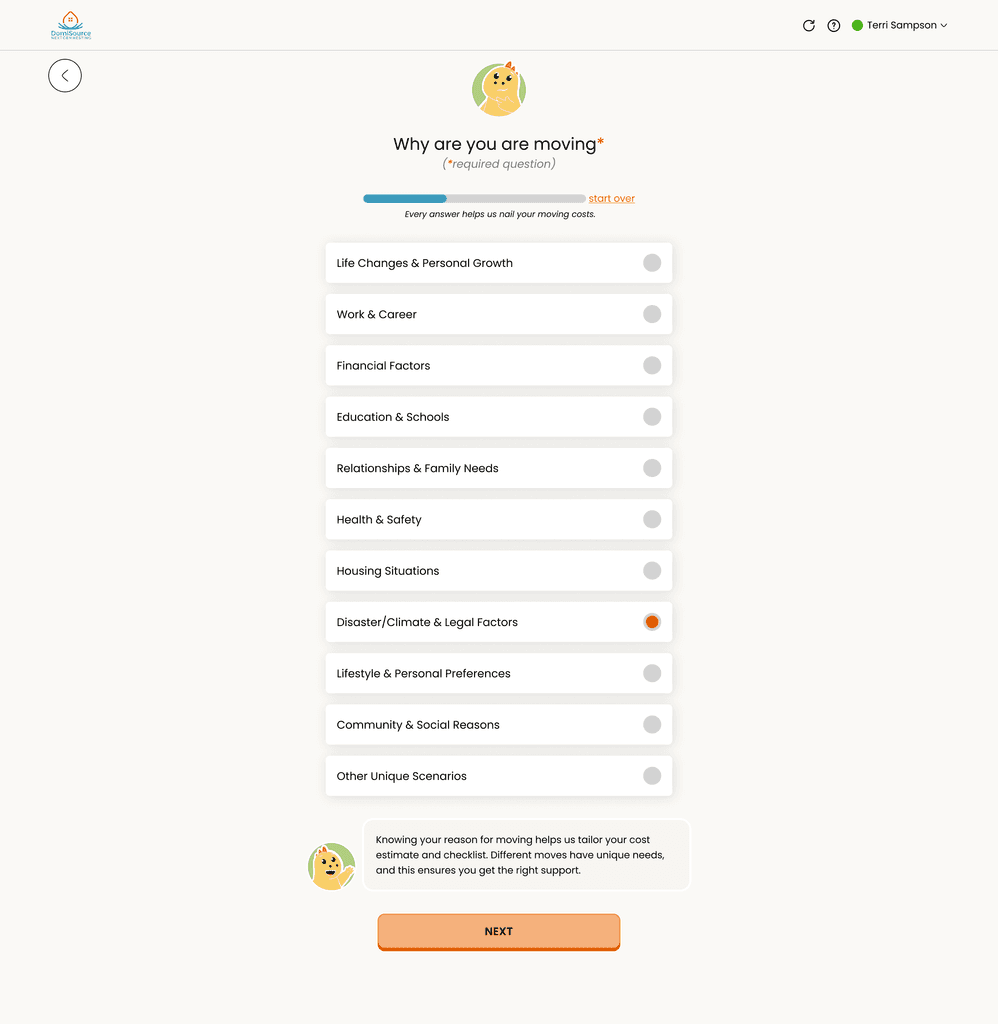
Usage: Used for all static and interactive content containing text
Text: Bolded, black
Background: Solid orange (full-color fill)
Corners: Rounded
Interaction: Button should change slightly on hover (e.g., increase brightness or apply slight lift shadow)
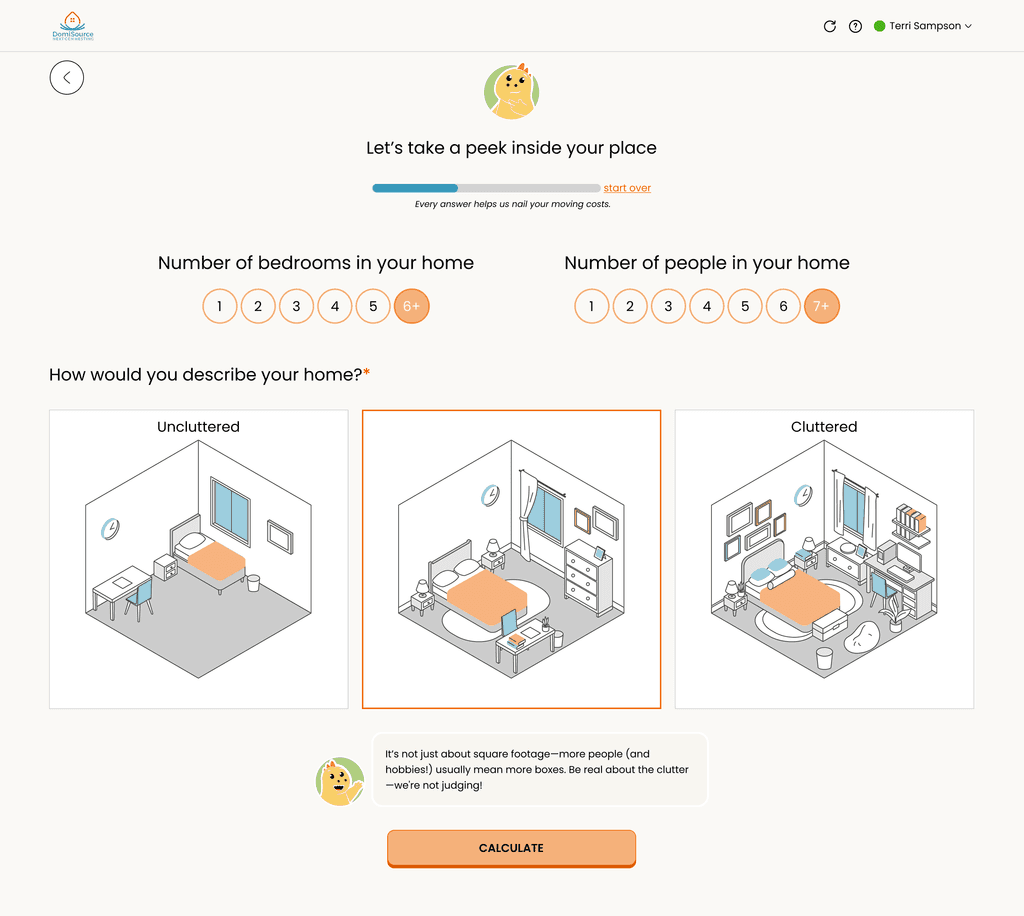
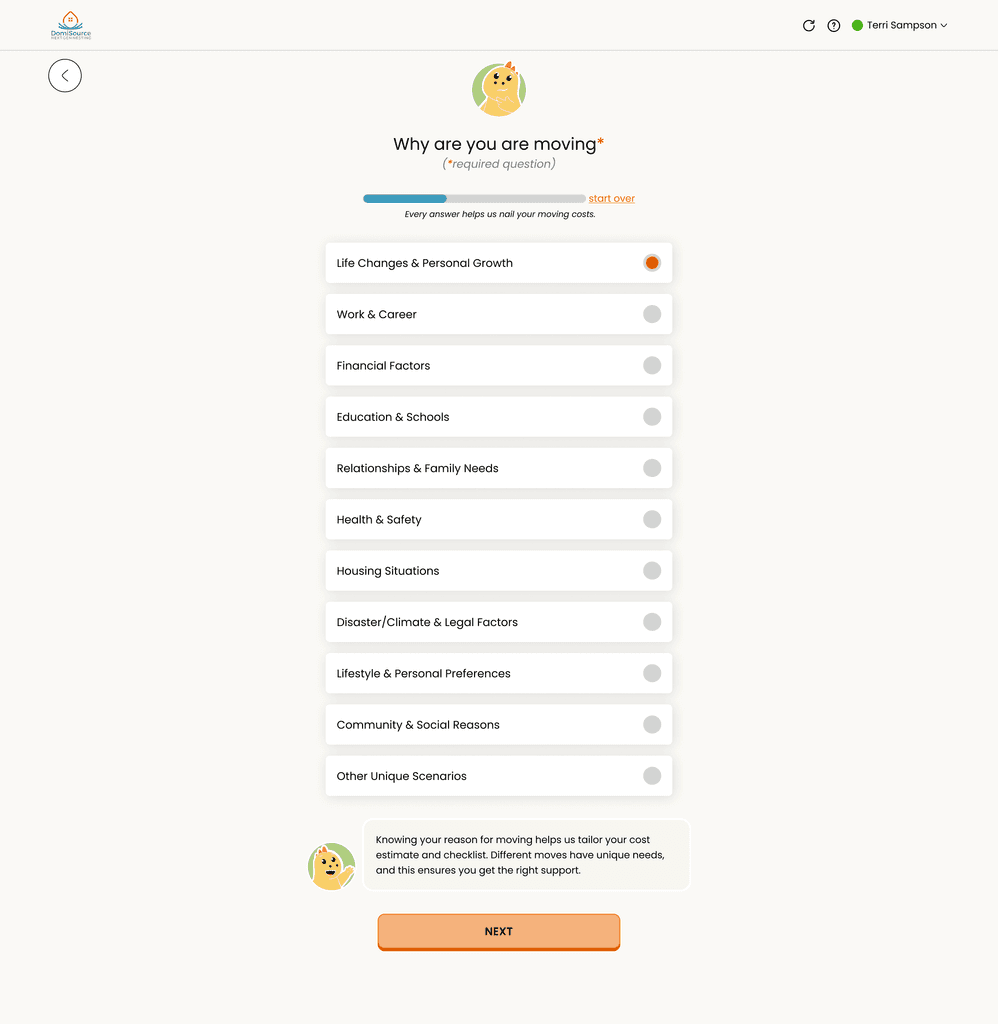
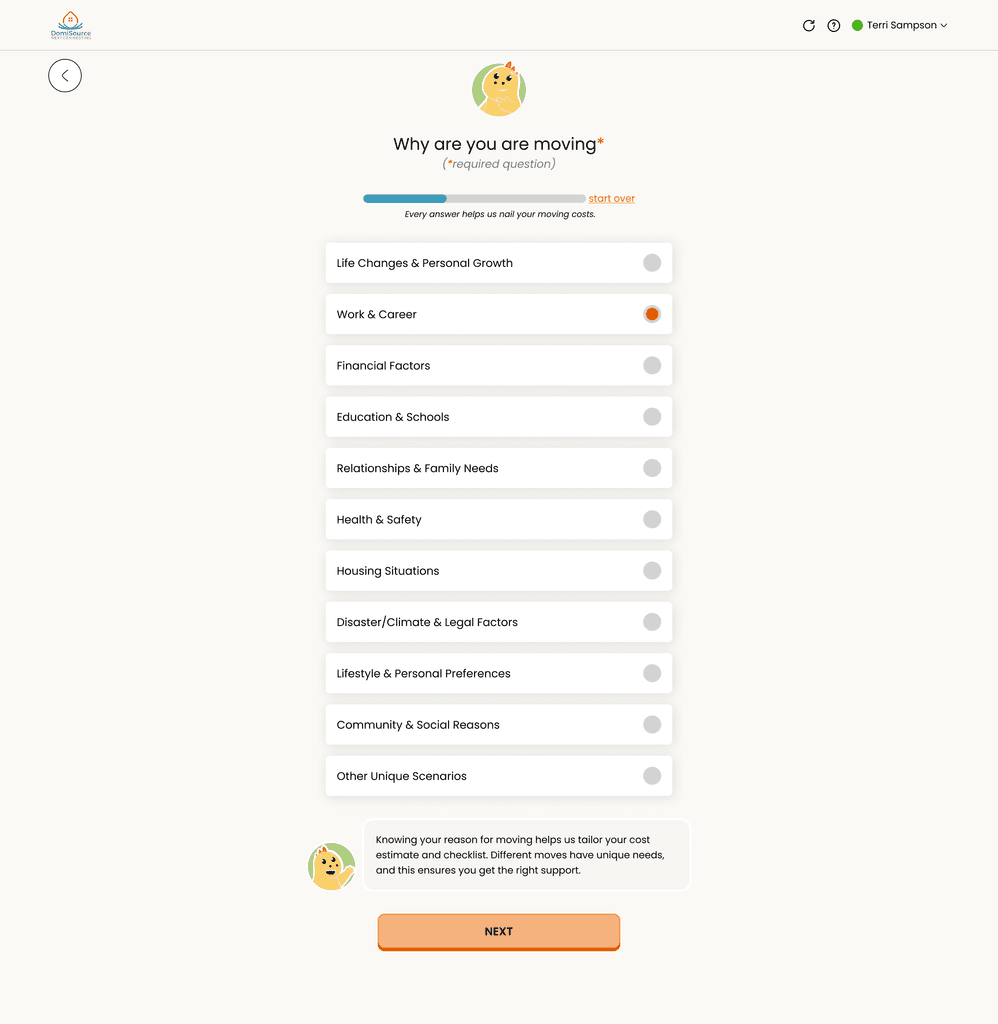
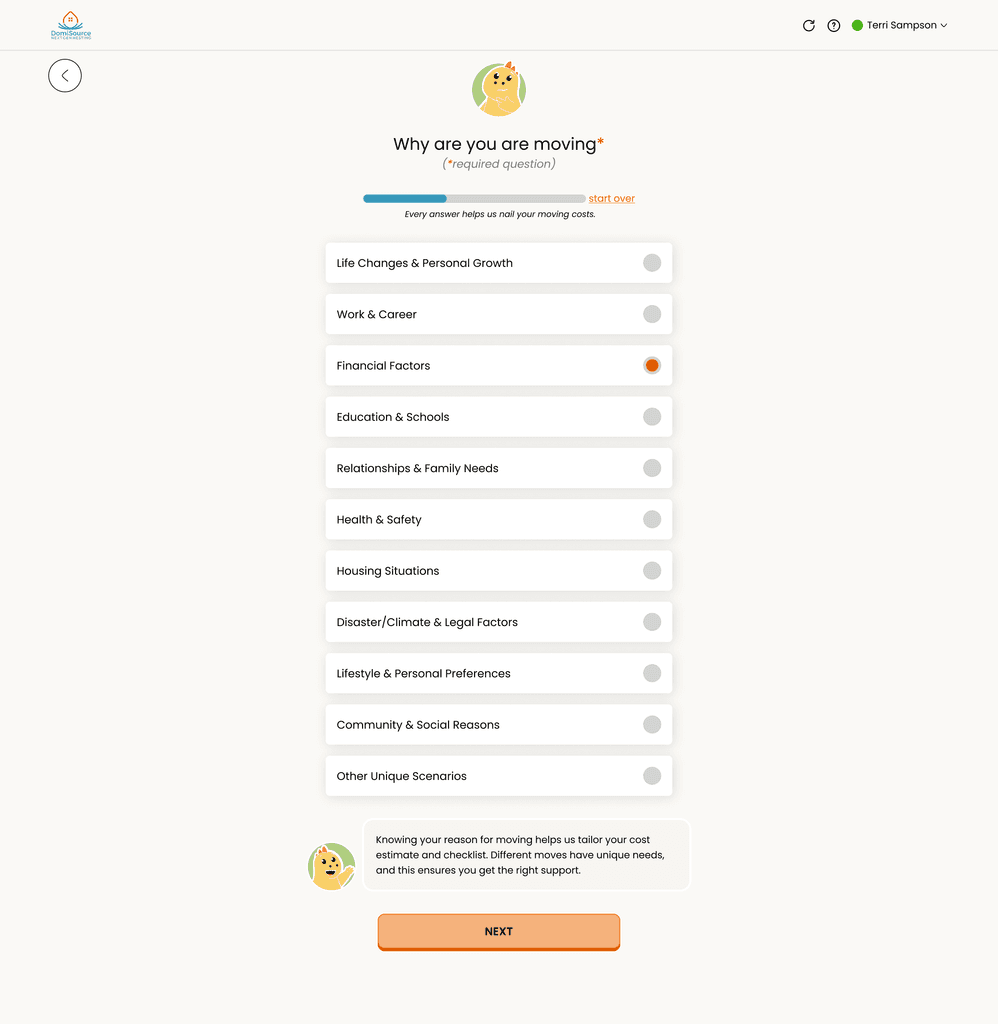
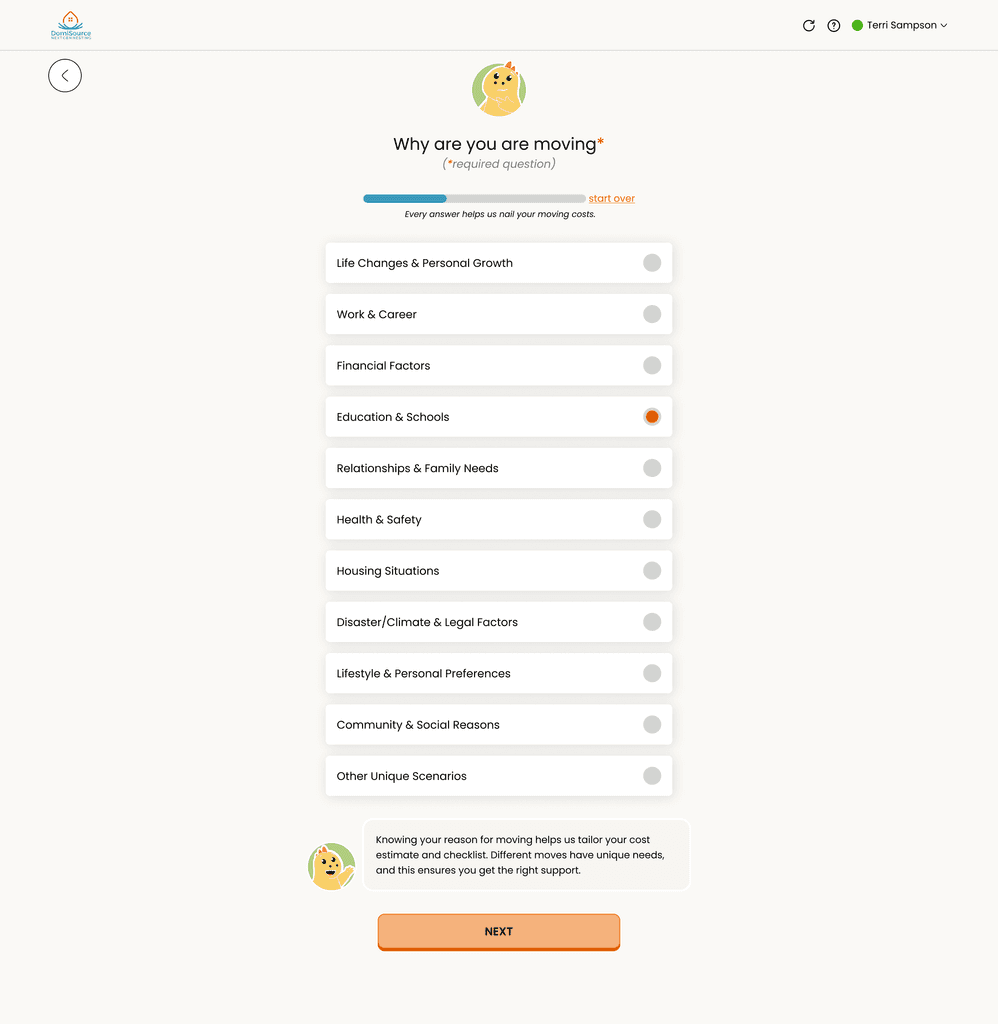
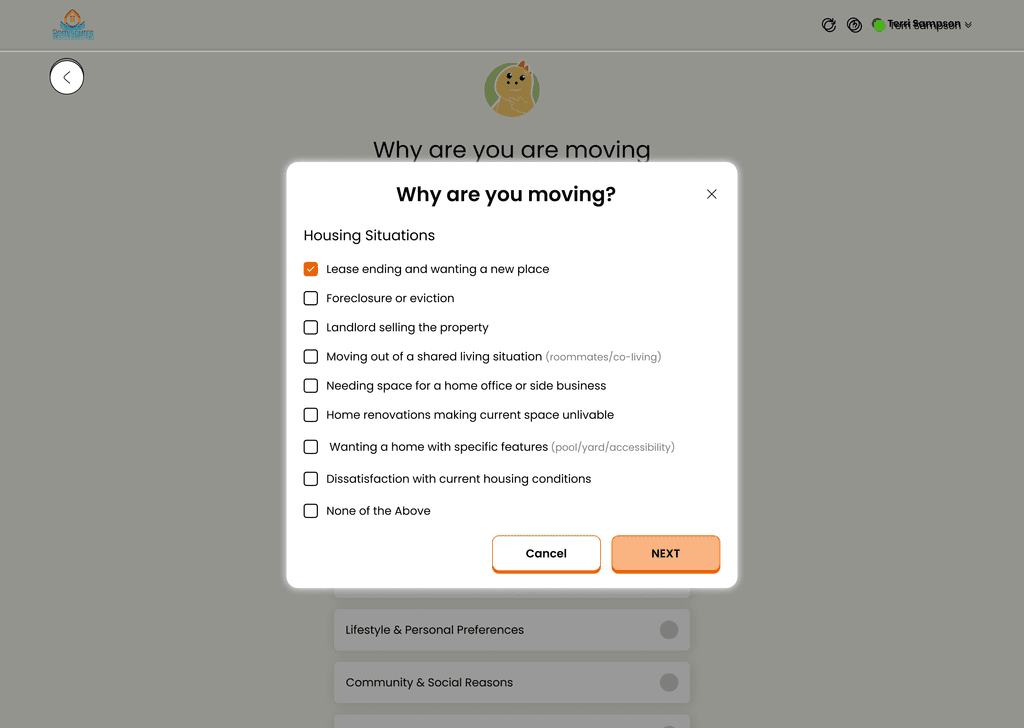
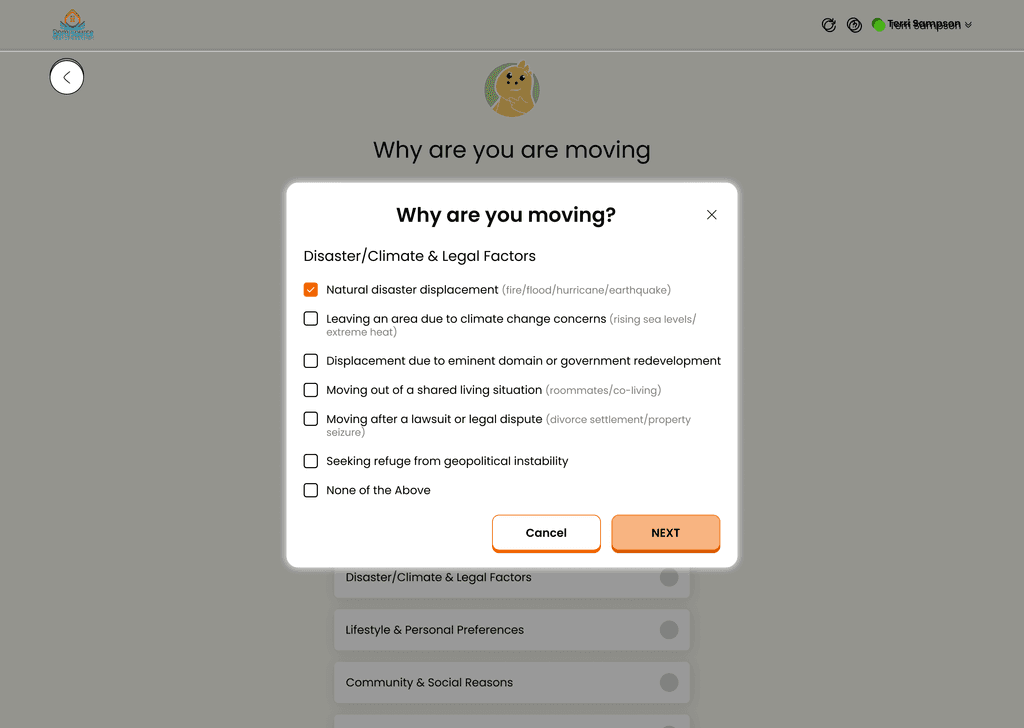
Interaction States: Options change visually based on whether they are Unanswered or Answered and whether they are Simple (e.g., icons/checks) or Complex (e.g., text and/or images).
Default State (Before Selection):
Border: Black outline (solid, 2 px)
Background: White
Text/Icon: Standard black or hidden
Shape:
Circle: Fully round for simple selection
Square: Rounded corners for more detailed options
Two formats based on complexity:
Simple (Icon/Checkmark Only):
Background: Solid orange fill
Icon: White checkmark centered
No text or imagery
Shape: Circle or rounded square depending on context
No outline or shadow
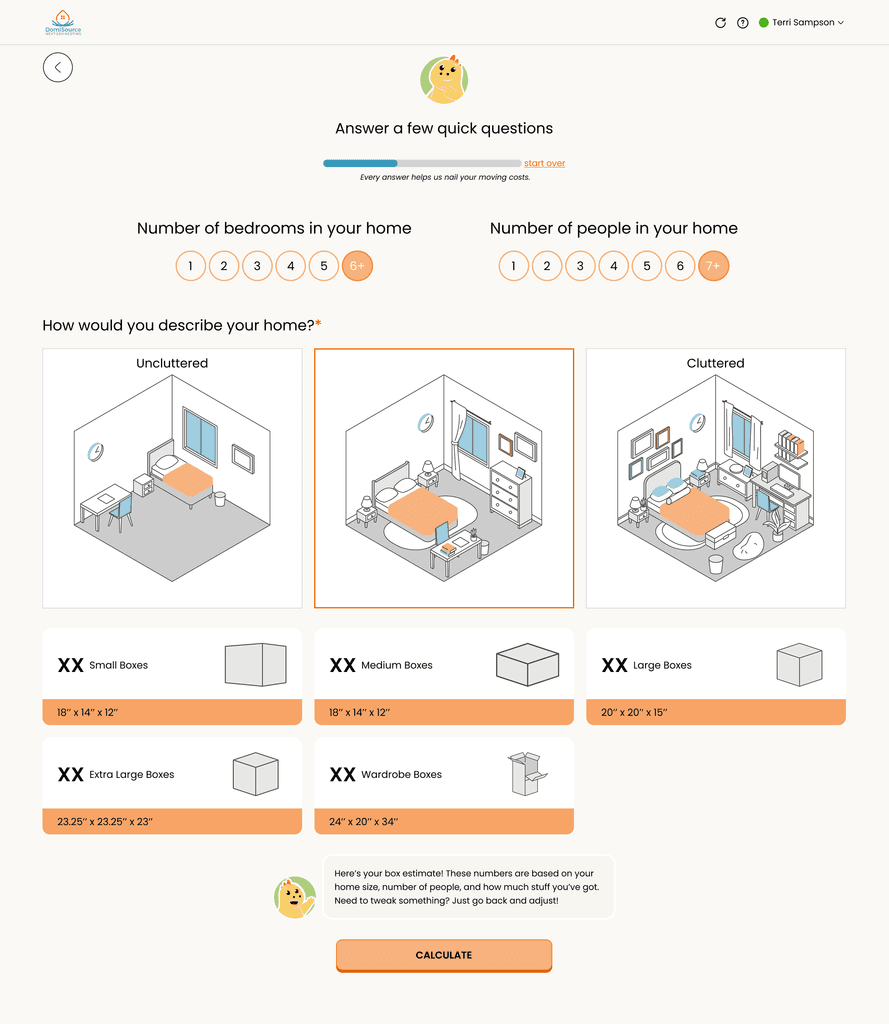
Complex Options (Text and/or Image included):
Border: Orange outline
Background: White
Text/Icon: Black or full color depending on design
Shadow: Subtle drop shadow to show elevation
Corners: Rounded
Layout: May include stacked or side-by-side
Guiding users through a series of steps or tasks in a journey (e.g., moving, setup, learning).
Style:
Background: White
Text: Black
Icon: Full color
Progress Dots: Orange for completed steps, light gray for upcoming steps
Action Button/Icon: Black right-arrow inside an outlined circle
Shadow: Subtle drop shadow for elevation
Corners: Rounded
Style:
✔ Background: White
✔ Text: Grayed out (medium-light gray to indicate completion without losing readability)
✔ Icon: Still shown but faded or desaturated
✔ Progress Dots: All orange
✔ Completion Indicator: Solid orange circle with white checkmark
✔ Shadow: Same as incomplete for consistency
✔ Corners: Rounded